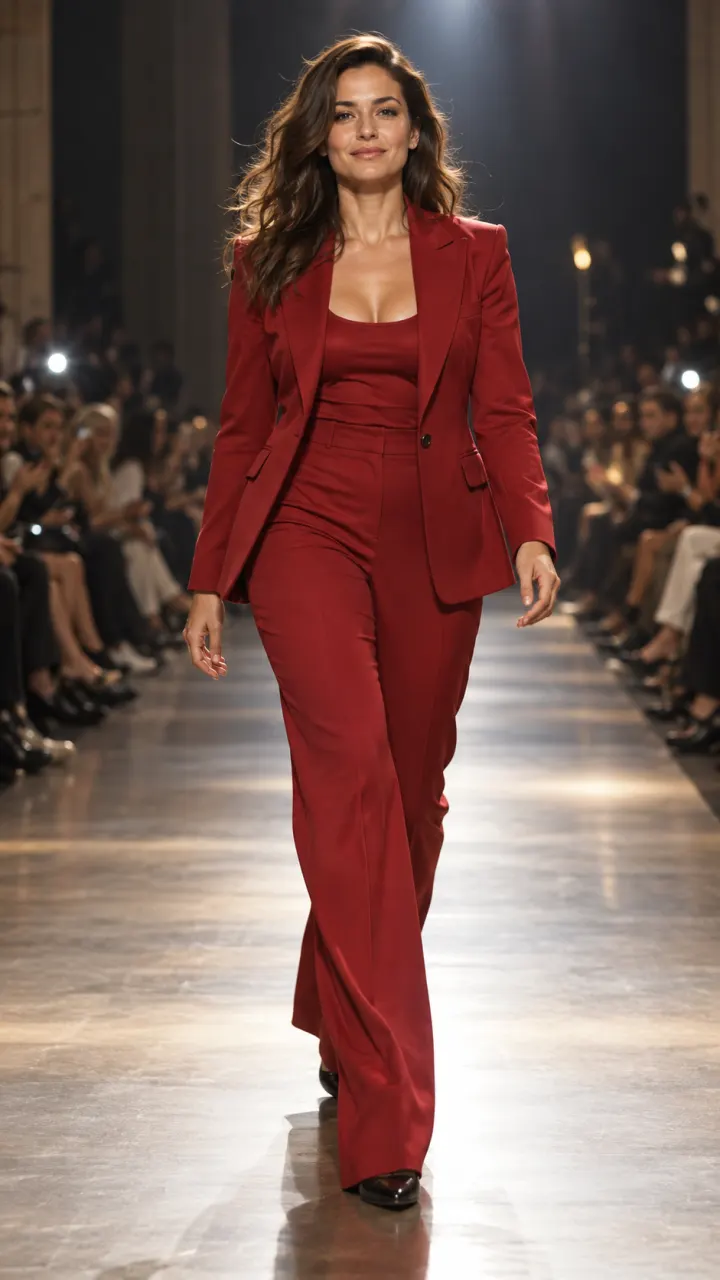
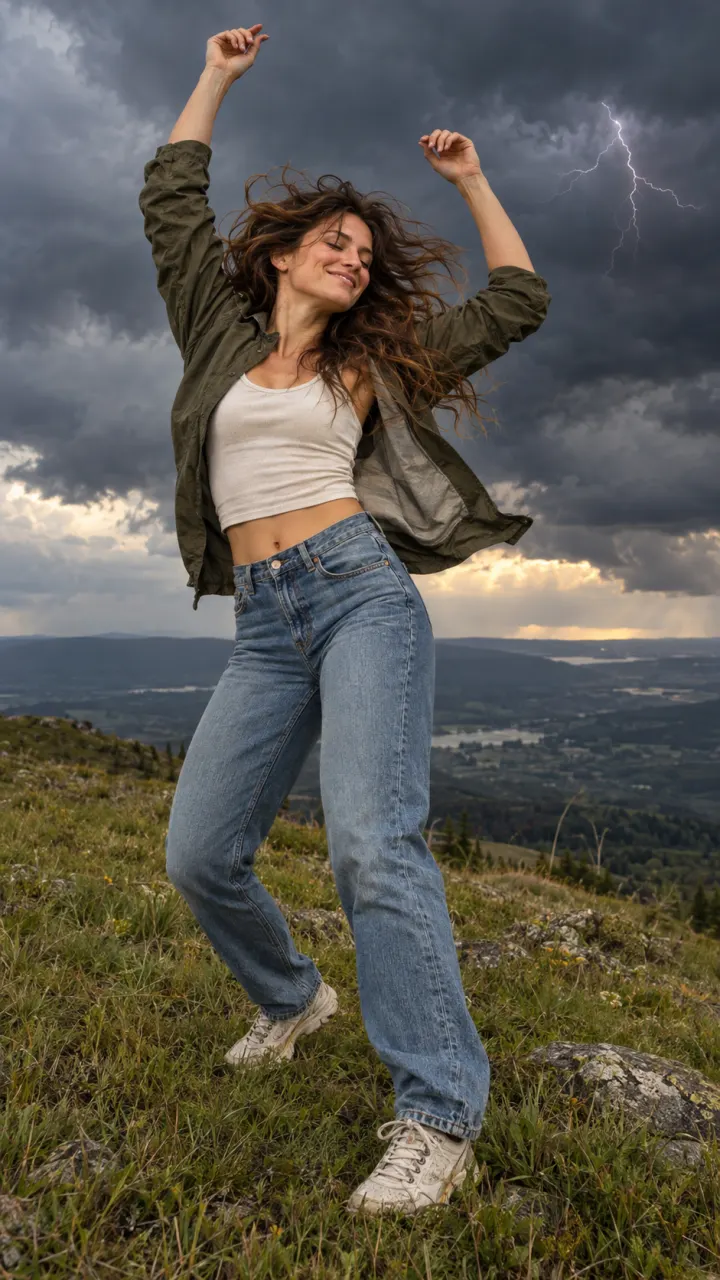
Veo 3.1
Dialogue and film-grade sound
- From your photo or a line of text
- Clips up to 8 seconds
- Sound when you want it
- Can end on a frame you pick
- Vertical or wide
All results are AI-generated and labeled.
0 / 1500
Add a start frame.
By adding a photo you confirm everyone in it is 18+ and agreed to have their face used for this. We use faces only to make what you ask for. How we handle faces
 Example · Zoom out to space
Examples show what each idea aims for. They are illustrations, not output from a particular model.
Dolly moves, crane shots and slow push-ins come out steady and framed like a film. Name the camera move the way a director would, like “slow push-in on her face” or “crane up over the crowd”, and give the shot one subject. It’s the family to reach for when the clip has to look made, like an opener or a product reveal. Plain text works; so does a starting photo on the AI video generator.
Start on a sunny coastline, then the camera rises straight up through the clouds until the whole coast fits the frame, satellite view

Veo 3.1 makes voices, music and effects with the picture. Put the line in quotes in your prompt, say who says it, and keep it to a sentence or two so it fits the clip. Add the sound around it too, like “quiet café, cups clinking”. For a clip that needs to run past one line, extend it in Studio and write the next line.
A hand throws a paper plane off a sunny balcony and it glides over the rooftops of an old city, the camera follows it

Veo 3.1 for the final cut, Veo 3.1 Fast and Gemini Omni Flash for drafts with the same feel. The prompt carries over between them, so you can rough out framing and timing on a draft model and only pay for the full run once it’s right. Credits for each run show before you make it. The full price list is on the models page.
A golden retriever in a high-rise office shakes hands with a man in a suit across the desk, city skyline behind, deadpan office comedy
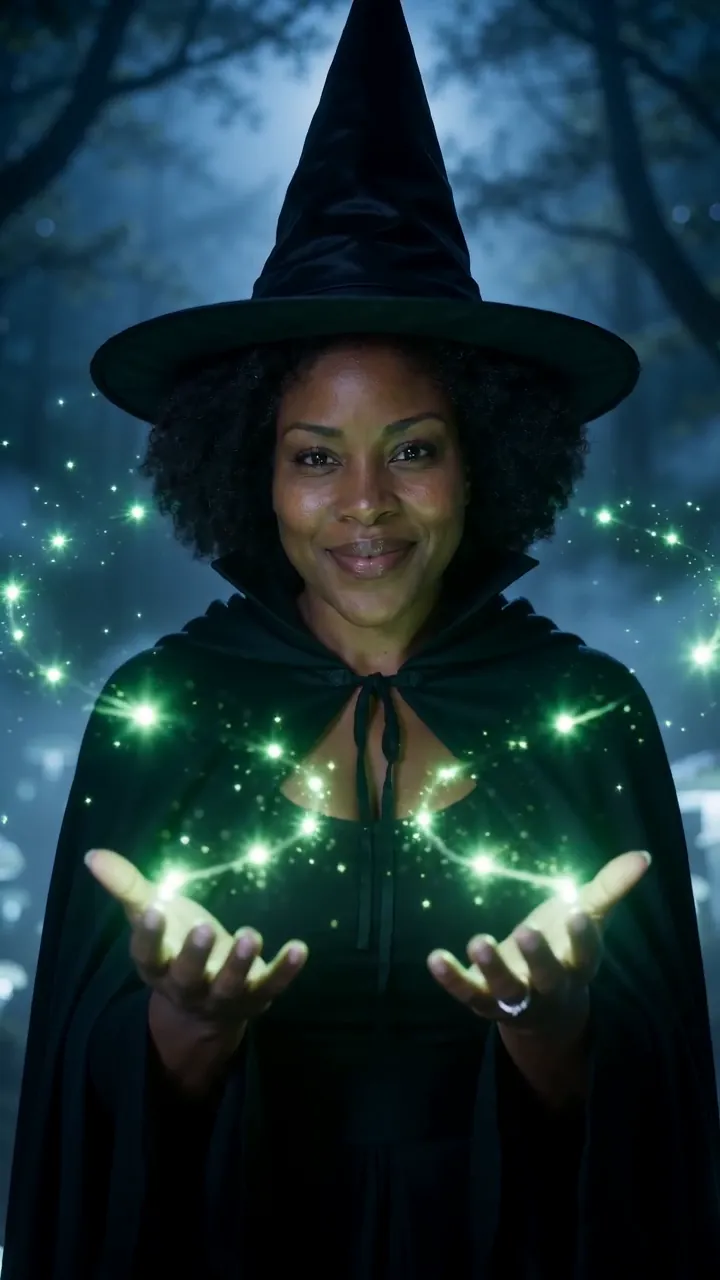 Short scenes with a spoken line
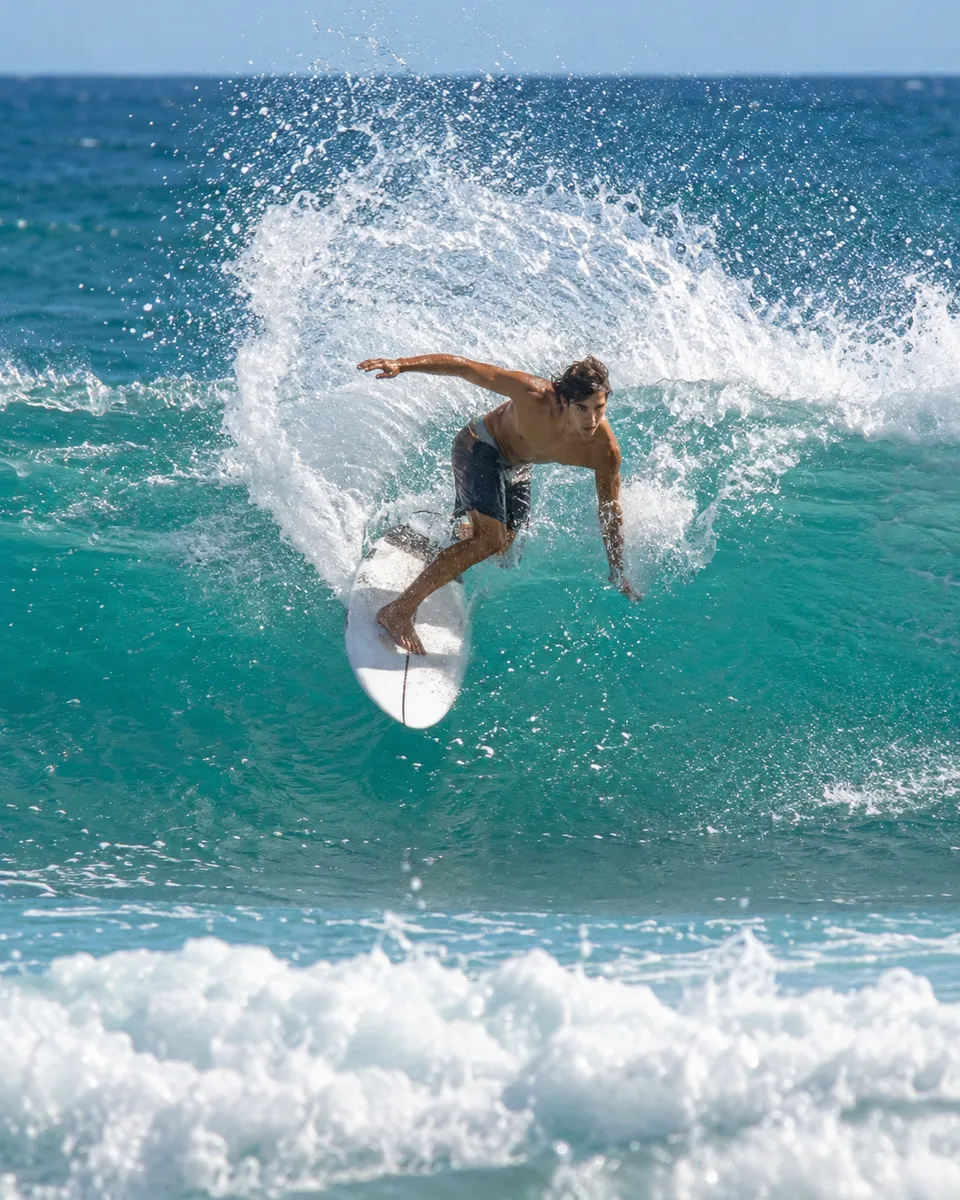 Establishing and drone shots
 Trailers and teasersProduct filmsNature and travel moments
Pictures are illustrations of the kind of result, not outputs of Veo & Gemini Omni.
Every version runs in the composer above. Switch any time; your photo and prompt stay put.
Dialogue and film-grade sound
The Veo look and sound for fewer credits
Clips from a prompt or a photo, up to 10 s
Start on a sunny coastline, then the camera rises straight up through the clouds until the whole coast fits the frame, satellite view
One clear subject works best: a person, a pet, a product or a place. Or switch to Text to Video and skip it.
One line about what moves and how the camera follows. Then set the shape, length and sound.
The button shows the cost first. Your clip lands in the feed when it’s done, and you can leave the page.
Other models do other jobs. All of them run in the same composer.
No. Veo & Gemini Omni is made by Google. Reelfie is an independent studio that runs it for you next to other models, with one account and one set of credits. Reelfie isn’t affiliated with Google.
From 30 credits a clip, depending on the version, the length, the resolution and sound. The Generate button shows the exact cost before you start, and a run that fails costs nothing.
Yes. Add a photo of yourself, or of someone who agreed, and nobody under 18. Your photos are deleted 7 days after upload and never used to train AI.
Veo 3.1: Dialogue and film-grade sound. Veo 3.1 Fast: The Veo look and sound for fewer credits. Gemini Omni Flash 1.1: Clips from a prompt or a photo, up to 10 s. Switch versions in the Model row; your photo and prompt stay put.
Veo & Gemini Omni makes clips of 4, 6, 8 and 10 seconds. Sound by version: Veo 3.1, on or off (2× credits); Veo 3.1 Fast, on or off (1.3× credits); Gemini Omni Flash 1.1, always on. Pick the shape and resolution in the composer.
No. Your Reelfie account runs Veo & Gemini Omni and every other model here on the same credits. You don’t sign up with Google or bring a key.
You get the credits back automatically, and the run shows Retry in your feed.
Model names belong to their makers. Reelfie isn’t affiliated with Google.