Quick answer
Upload one clear photo with a face you can see, pick a trend template, and press the make button. You get an 8-second vertical video to download or share. The price is on the button before you start.
The easiest way to animate a photo on Reelfie is a trend template: you add one photo and get back a short clip with real motion, not a zoom or a slideshow. The template sets the movement, the setting and the timing, so you don’t have to describe anything.
This guide covers the parts that change the result most: the photo you pick, the template you pick, and what to check before you post.
What you need
- A photo: JPG, PNG or WEBP, up to 10 MB and at least 512 pixels on each side
- One face you can see clearly, looking roughly at the camera
- A Reelfie account with a few credits
Everyone in the photo has to be 18 or older and has to have agreed to it. Photos of your pet are fine too: several templates are made for dogs and cats.
Step 1 · Pick the photo
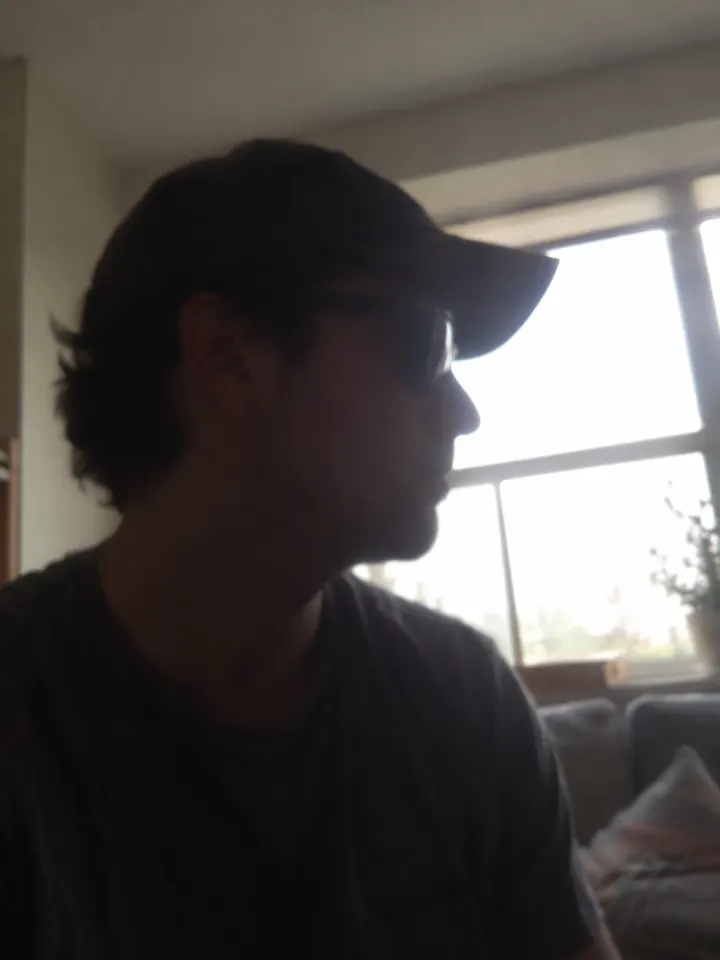
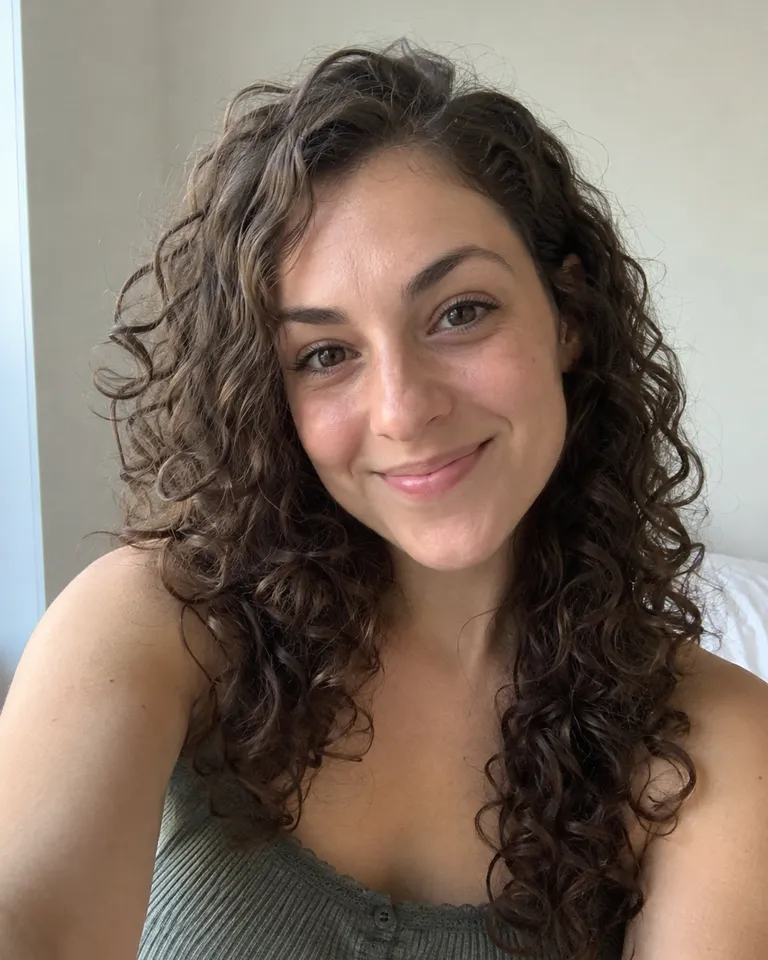
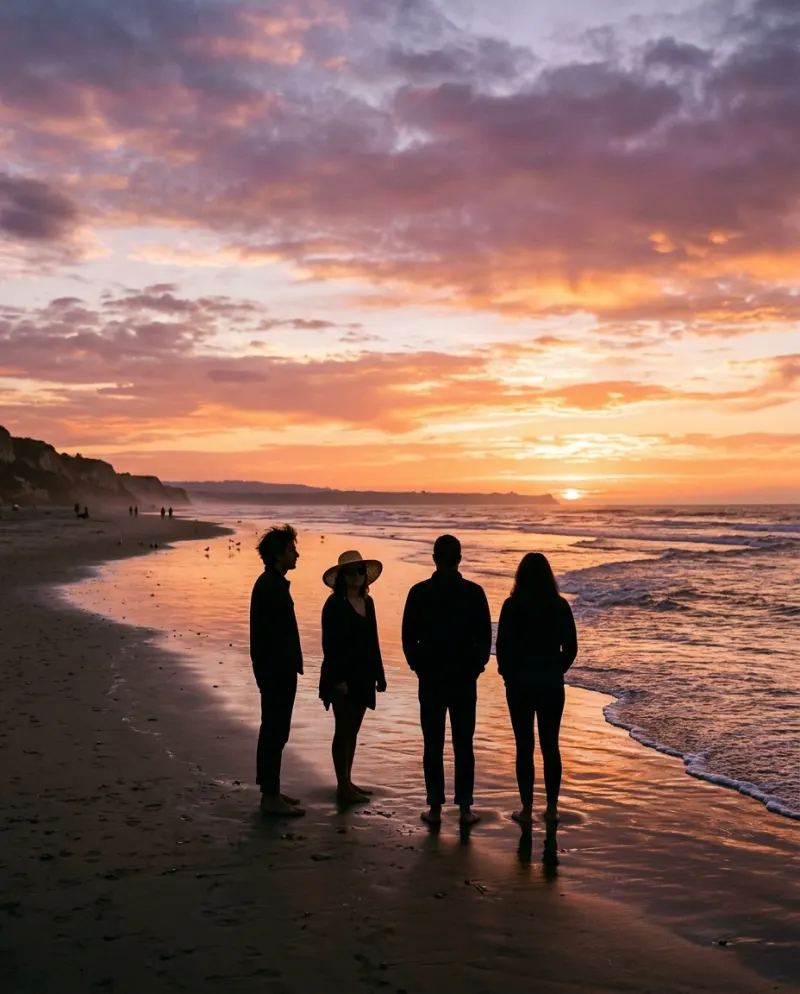
The photo decides most of the result. A sharp, front-on face in soft light gives the AI something to hold on to while it moves the picture. Sunglasses, a cap pulled low, hands over the face and heavy filters make it guess, and a guess is where faces start to drift.
 Works well
 Hard to animate
A recent selfie usually beats an old favorite. Phones take sharp photos, and a selfie puts your face in the middle of the frame, which is what most templates expect. More on this in The best photos for AI video: 7 rules.
Step 2 · Choose the motion
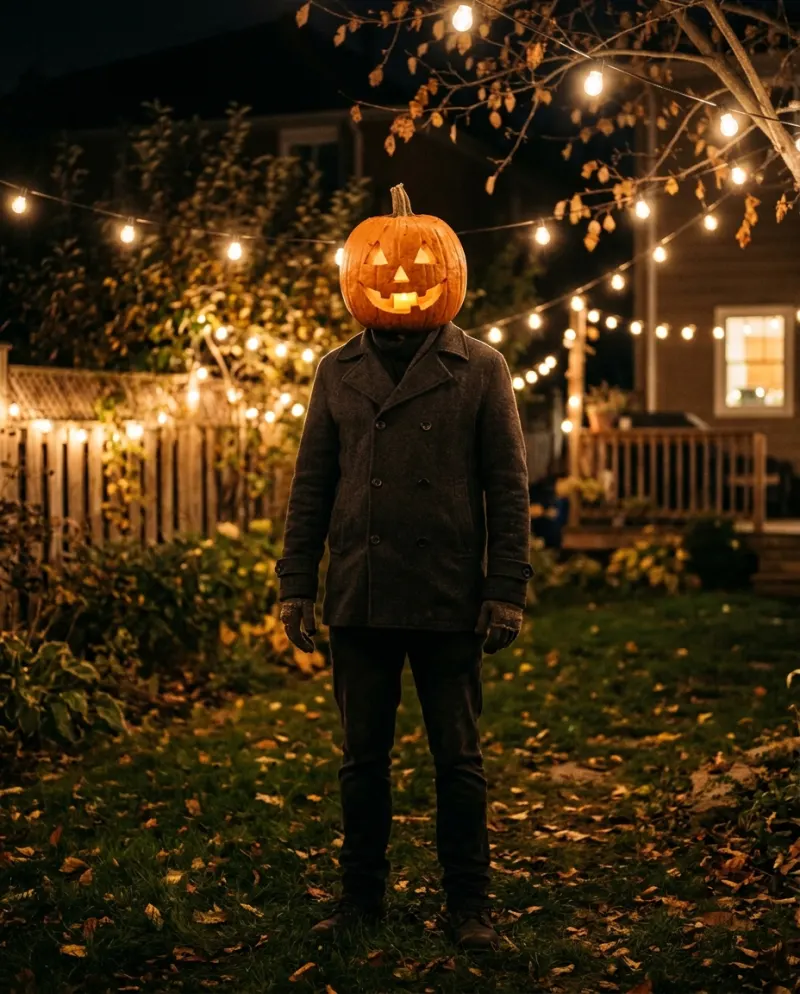
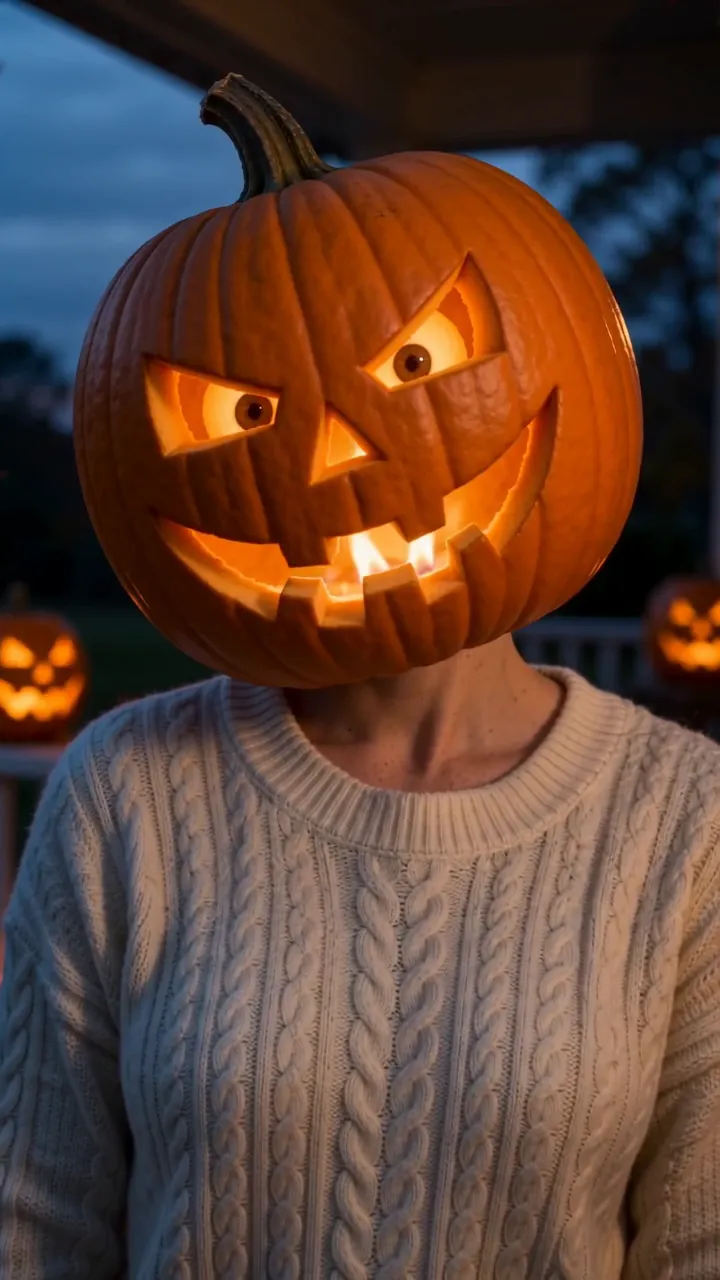
Each video template is one trend with its motion already worked out: a head that turns into a jack-o’-lantern, a long hug, a body that puffs up like a balloon. You pick the one you want and add your photo. That is the whole setup.
Know the trend’s name?
Search for it. Templates are named the way people search for them, like Pumpkin Head AI or AI Hug.
Just browsing?
Start from a category: Halloween, couples, pets or funny. Each video template has a real sample to watch, so you see the motion before you spend anything.
Want two people in it? Pick a couples template like AI Hug. Those take two photos, one of each person, and put you both in the same clip. A group photo in a solo template is a gamble: it may pick one face and crop the rest.
Step 3 · Make it and check it
Press the make button. The price is on it before you start, and if a video fails, your credits come back automatically. You don’t have to keep the page open: the video lands in Assets when it’s ready.
When it’s done, watch the first and last second. That is where a face is most likely to look a little off. If it does, the fix is nearly always the photo, not the template: try a closer crop of the same picture, or a sharper one.
Step 4 · Save and share
Download the MP4, or share a link that plays on any phone. Videos are 9:16, the shape TikTok, Reels and Shorts expect, so there is nothing to crop. Each video is private until you share it.
Posting to TikTok? Read How to post an AI video to TikTok without losing quality first. A couple of upload settings make a visible difference.
Common problems
The face looks different by the end
Crop closer so the face fills about a third of the frame, then try again.
The result is soft or blurry
Start from a sharper photo. If yours is small, run it through the Image Upscaler first.
Two people, only one moves
Use a couples template and add one photo of each person.
The photo was turned down
Check it is a JPG, PNG or WEBP under 10 MB and at least 512 pixels on each side. iPhone HEIC photos can be shared as JPG from the Photos app.
FAQ
Is it free?
Free to try: every new account gets one photo trend free, no card needed. After that, start a plan, which you can cancel any time, or buy a credit pack when you need one. Each run shows its cost before you start.
What happens to my photo?
Your photos are deleted 7 days after upload and never used to train AI.
Can I use a photo of someone else?
Only with their permission, and only if they are 18 or older. Templates are for you, friends who agreed, and your pets.
Can I write my own motion instead of using a template?
Not yet. For now every video starts from a template, which is also why results are predictable: you see a real sample of the motion before you make yours.
Make your first one
Trend templates: One photo in, an 8-second video out.
Browse trend templatesYour photos are deleted 7 days after upload and never used to train AI.