Restore Old Photos with AI
Fix scratches, creases, fading and blur in old family photos. Snap it with your phone, then let the AI clean it up.
Not charged if it fails.
Adults only: restore photos of people 18 or older, with their consent.
By adding a photo you confirm everyone in it is 18+ and agreed to have their face used for this. We use faces only to make what you ask for. How we handle faces
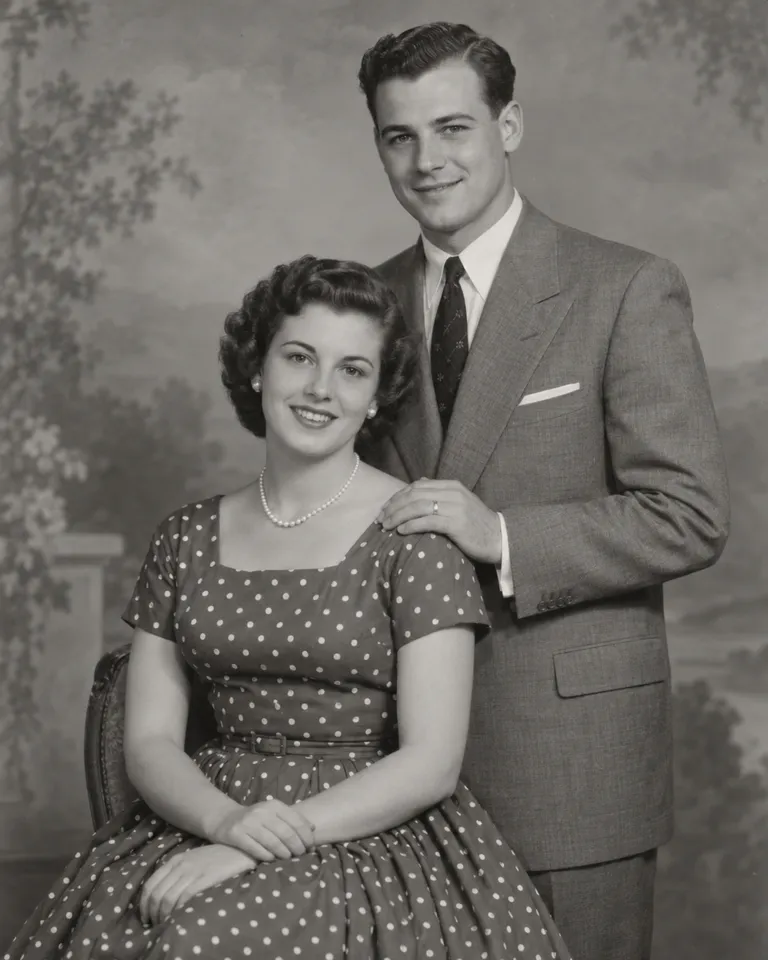
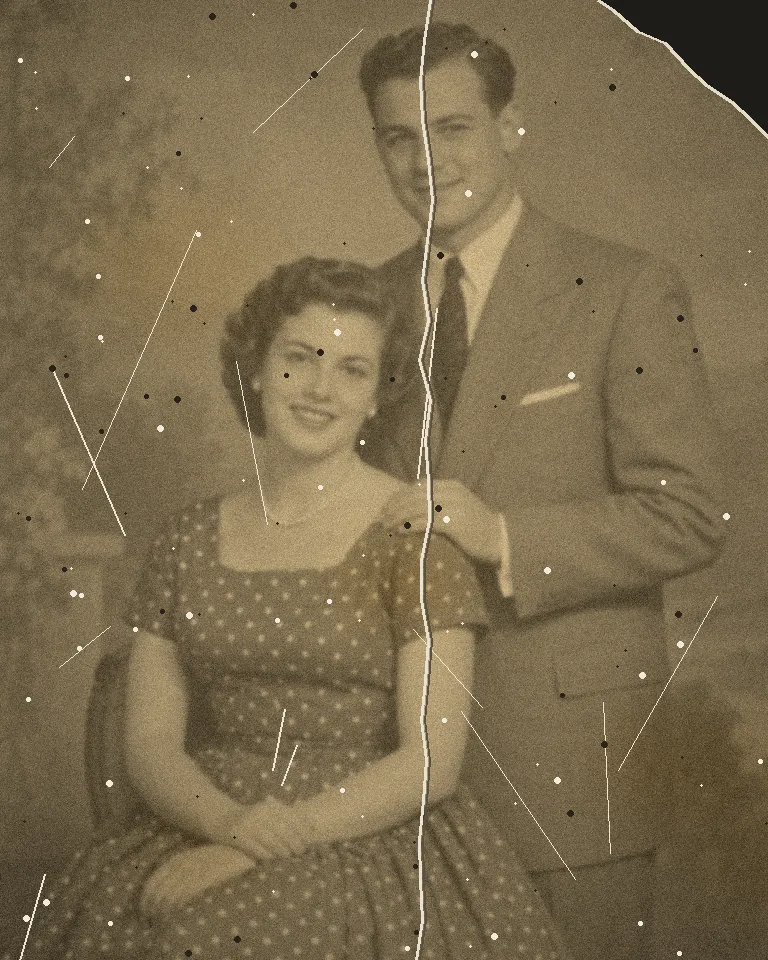
Samples are illustrations. Your result depends on your photo.
Fix creases and torn corners
Photos that lived in wallets, drawers and shoeboxes pick up creases, folds and torn corners. The restorer fills these in from what’s around them, so a crease across a 1950s portrait disappears and the edge is whole again. It keeps the film grain and the tone of the era, so the result still looks like an old photo, only cared for. Small tears are the easy part. When a missing piece crosses a face, the new part is a guess, so compare it with the original. For a bigger print afterwards, use the image upscaler.
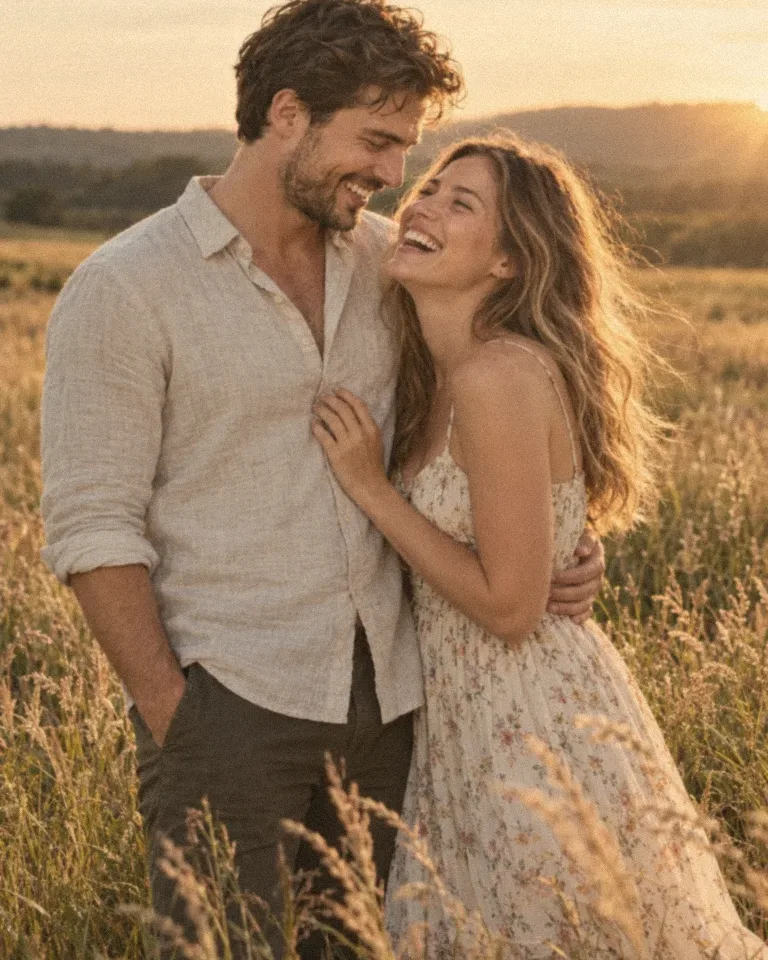
Bring back faded, yellowed color
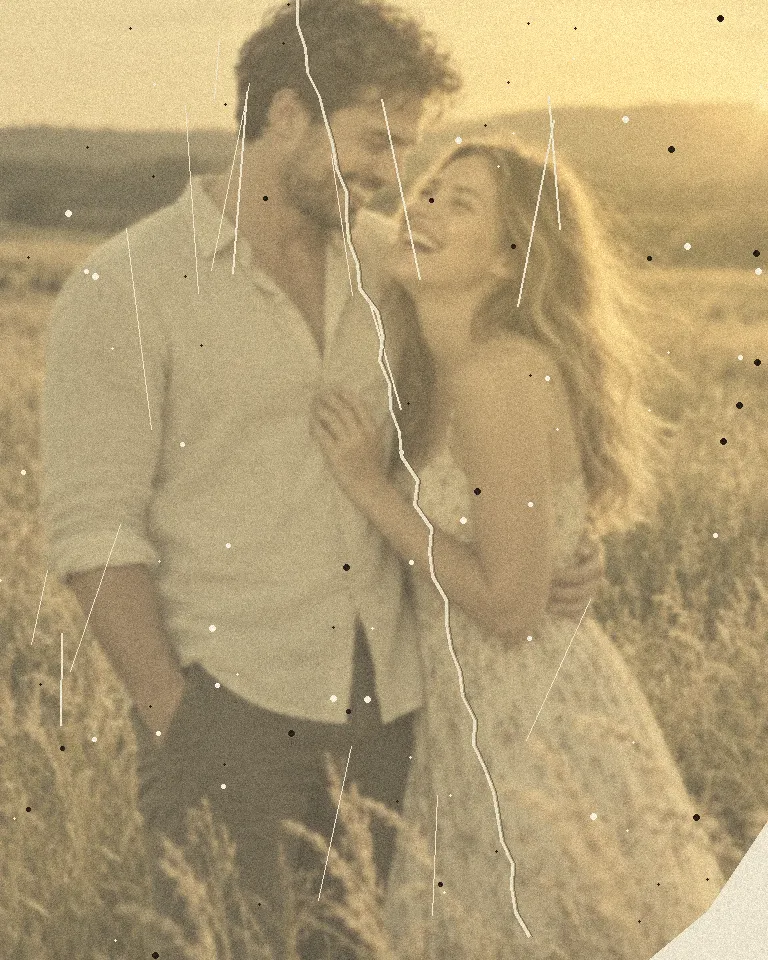
Color prints from the 1970s often turn yellow, orange or pink as the dyes age. The restorer lifts the fading, corrects the color cast and brings the contrast back, so a washed-out snapshot in a field looks closer to the day it was taken. Black and white photos stay black and white: it repairs color that was there and doesn’t add new color. Shoot the print in daylight with the flash off, because the warm light of a lamp adds a cast of its own. Want to change something else, like the background? Use the AI photo editor.
Remove scratches and spots from portraits
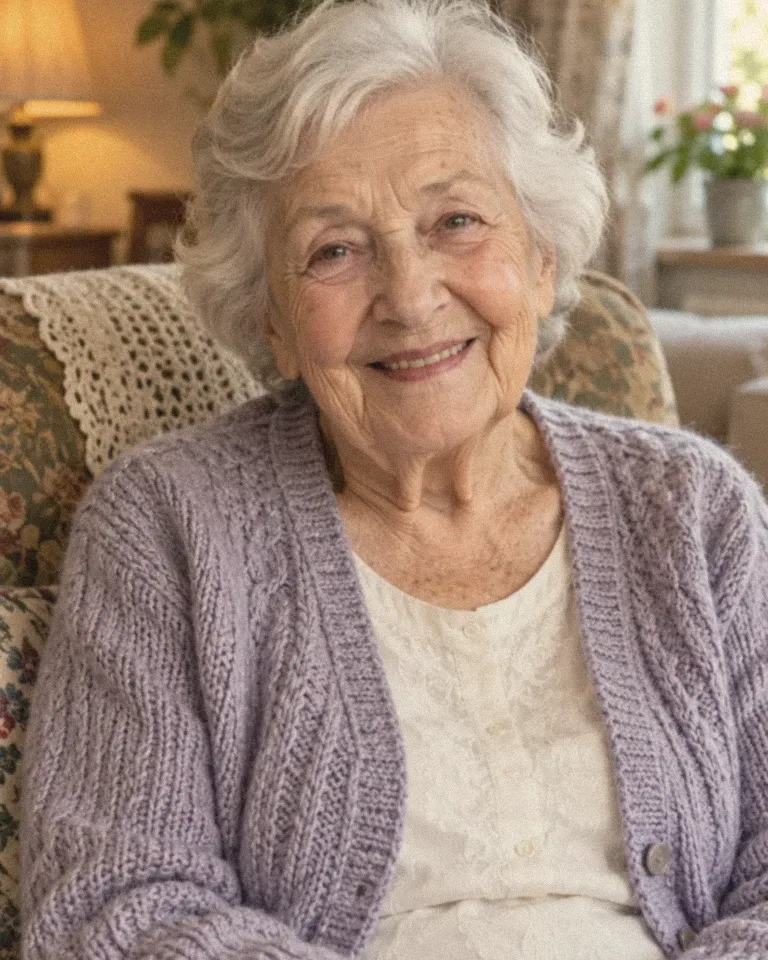
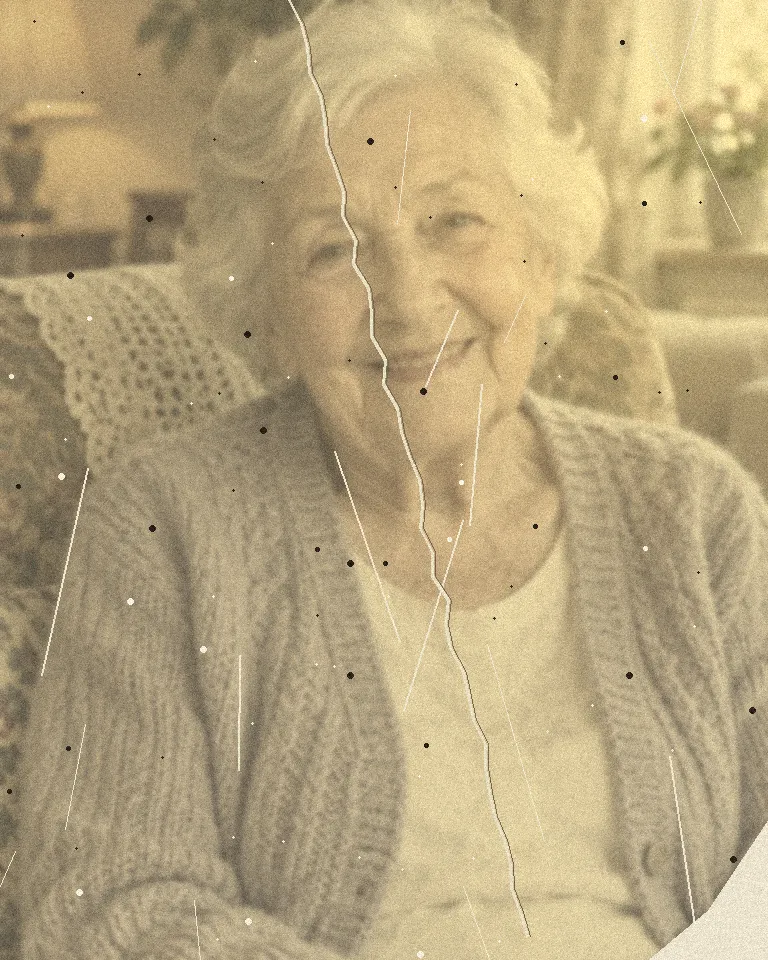
Old portraits often carry dust spots, fine scratches and a soft focus that hides the face. The restorer clears the spots and scratches, then sharpens the eyes, the hair and the line of the face, while keeping the person recognizable to the people who knew them. A clear, flat copy of the print gives it the most to work with. If the face was badly out of focus to begin with, look closely at the eyes and mouth, and keep the original next to the restored copy. Once it’s restored, you can bring the photo to life as a short clip.
Repair scratches, tears and fading
How to restore an old photo
- Choose photo1
Snap or scan it
Take it out of the album sleeve and photograph it flat, in daylight. JPG, PNG, WEBP or HEIC, up to 20 MB.
- Restore2
Restore
One tap. Scratches, fading and blur are fixed together.
- Full sizeShare link3
Compare and share
Drag the slider to see the difference, then download it for the family chat.
What people restore old photos for
- 01Family albumsBring back the photos that have been fading in a drawer.
- 02Memorials and tributesA clear photo for the service, the frame or the slideshow.
- 03Family historyClean up portraits before you add them to a family tree.
- 04GiftsPrint a restored photo for a grandparent’s birthday.
Getting a good copy of an old photo
You don’t need a scanner. Take the photo out of its sleeve or frame, lay it flat near a window and shoot straight down so it fills the screen. Turn the flash off: glare on glossy prints hides more than any scratch.
The AI fills in scratches and creases from what’s around them, lifts fading and sharpens soft faces. It keeps the photo’s age: black and white stays black and white, and film grain is left alone so the result still looks real.
Heavily damaged spots, like a missing corner across a face, are rebuilt as a best guess. Always compare with the original before you print, and keep the original too.
Old Photo Restore FAQ
Something else? Visit the help center.
Is photo restoration free?
Free to try: every new account gets one photo trend free. After that, each run shows its cost before you start. Pick a monthly or yearly plan, or top up with a credit pack. You can cancel a plan any time, and the price is on the button before you start.
Do I need a scanner?
No. A clear phone photo works. Shoot it flat, in daylight, with the flash off.
Will it add color to black and white photos?
No. It keeps the original colors, so black and white photos stay black and white.
Can it fix a torn or missing part?
Small tears and creases, yes. Large missing areas are filled in as a best guess, so check faces before you print.
What files can I upload?
JPG, PNG, WEBP or HEIC, up to 20 MB. One photo at a time.
What happens to my photo?
Your photos are deleted 7 days after upload and never used to train AI. The restored copy stays in Assets until you delete it.
What if it fails?
You get the credits back automatically. You don’t need to ask.
Can I restore photos with children in them?
No. Reelfie only accepts photos of adults, 18 or older, so a photo that shows a child can’t be restored here, even an old family one. It’s a site rule we keep for everyone’s safety. We’re sorry we can’t help with those photos.
Why does a face look different after restoring?
Usually because the original face was very small, blurred or damaged. The AI has to fill in what it can’t see, and that can shift the eyes or mouth slightly. Start from a sharper copy, shoot the print straight on without glare, and compare with the original before you print or share it.
Can I turn a restored photo into a video?
Yes. Open the restored photo in Studio and you can animate the result there, turning the still portrait into a short video. The same rules apply as for restoring: only use photos of people who are 18 or older, with their consent.