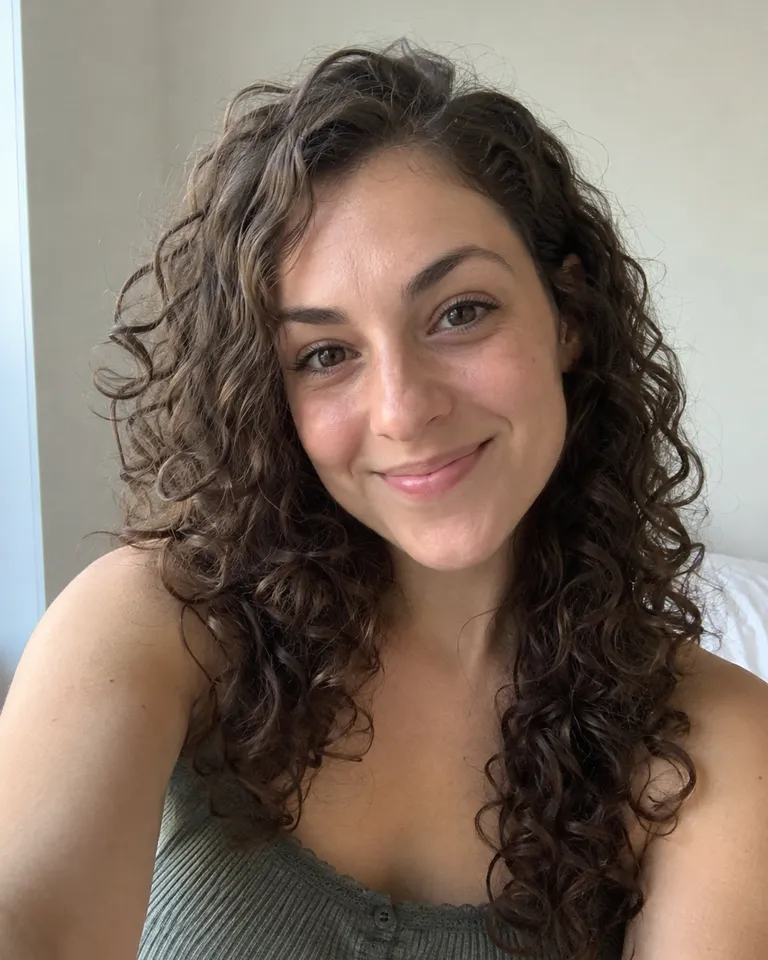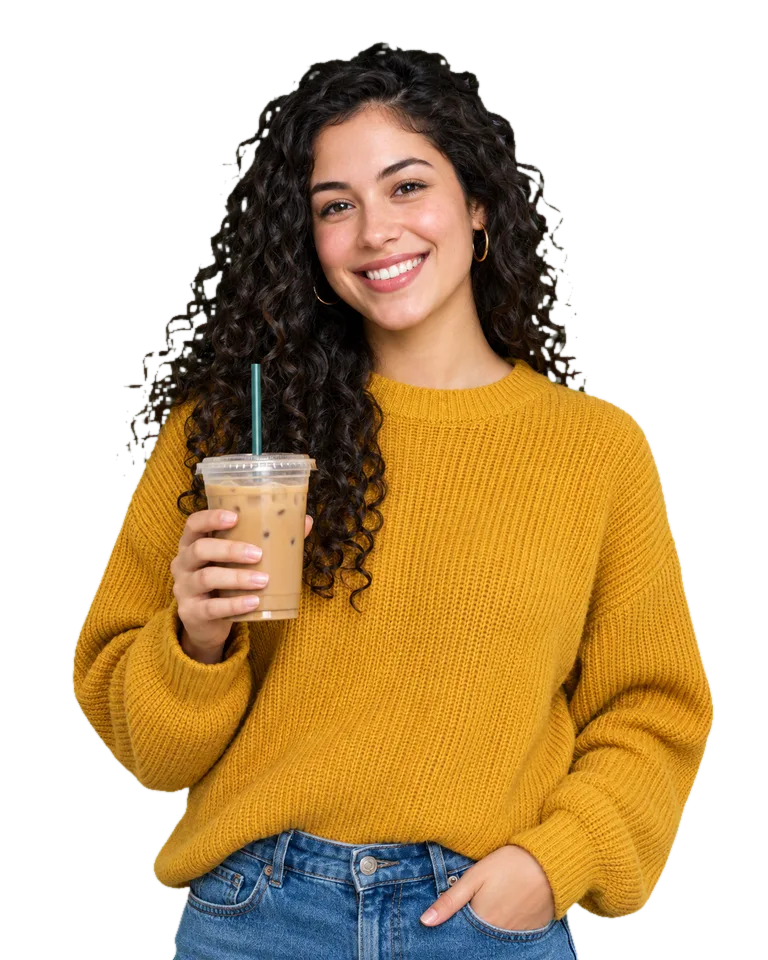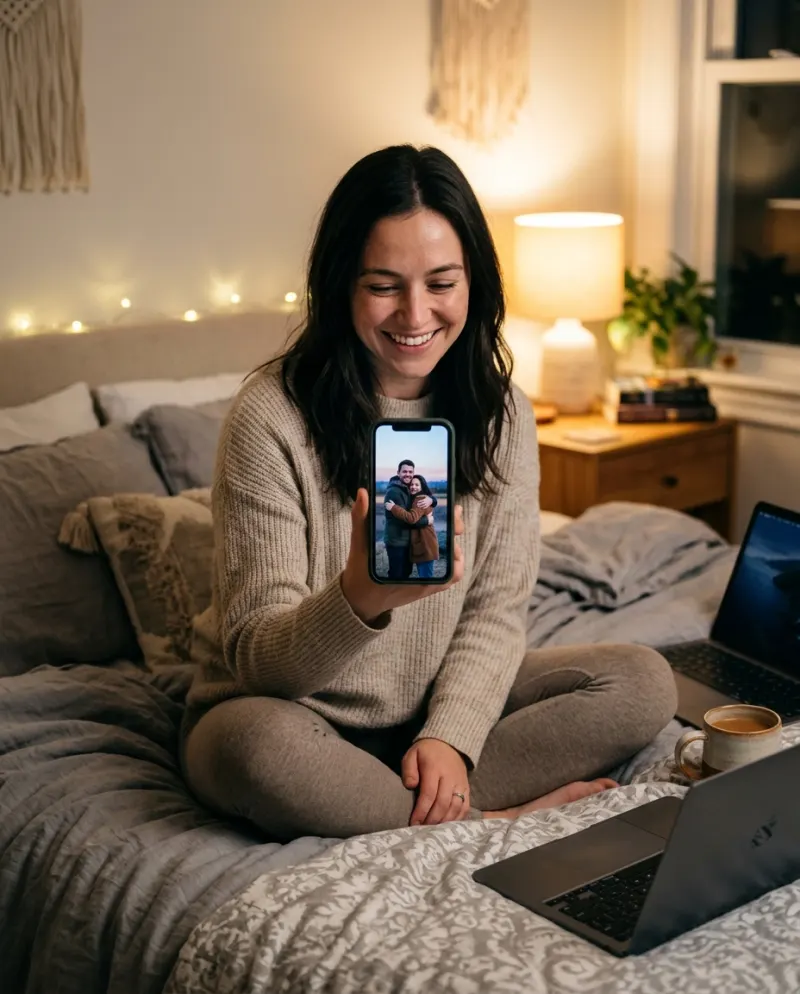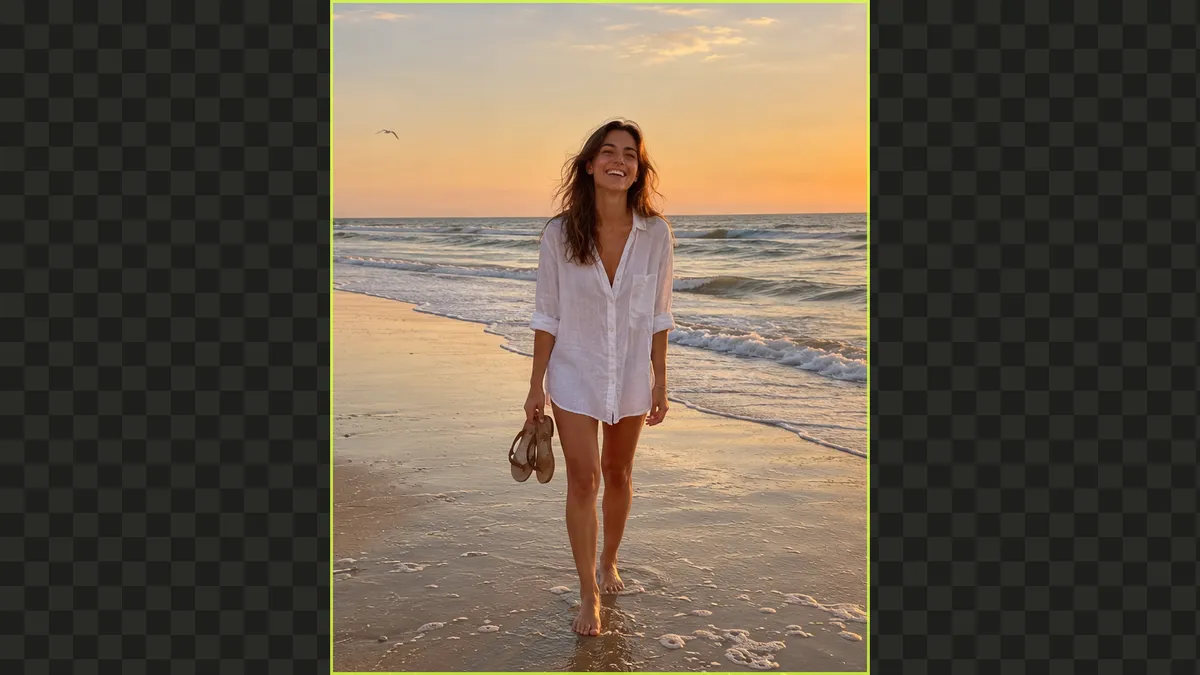
Quick answer
You have three choices: crop, which cuts things out; add bars or a blurred copy at the sides, which looks like a stopgap; or extend the photo, which paints new scenery past its edges. To extend, add the photo to an image extender, pick 16:9, 1:1 or 9:16, and check the new edges before you post.
Photos rarely come in the shape you need. A portrait from your phone is too tall for a YouTube thumbnail, a wide shot is too short for a story, and every app crops it differently.
The Image Expander fixes the shape without cutting anything out: it keeps your photo exactly as it is and adds new scenery around it. Here is when to use it, and when a plain crop is fine.
Which shape do you need?
16:9 · wide
YouTube thumbnails, banners, slides, desktop wallpapers and website headers.
1920 × 1080
9:16 · tall
TikTok, Reels, Shorts and Stories, filling the whole phone screen.
1080 × 1920
1:1 · square
Feed posts, profile pictures and listings.
1080 × 1080
Crop, bars or extend
Cropping is the right call when there is room to lose: a landscape with sky to spare, or a close-up you want even closer. It is the wrong call when it cuts off heads, feet or the thing the photo is about.
Bars, or a blurred copy of the photo behind it, keep everything but look like a stopgap, and they leave less of the screen for your picture.
Extending keeps the whole photo and fills the new space with more of the scene: more sand, more sky, more wall. Nothing you shot is cut out or redrawn.
Step by step
- 1Open the Image Expander and add your photo. JPG, PNG, WEBP or HEIC, up to 20 MB.
- 2Pick the new shape: 9:16, 1:1 or 16:9. The price is on the button before you start.
- 3Drag the slider to see what was added, then download the PNG. It’s in Assets too.
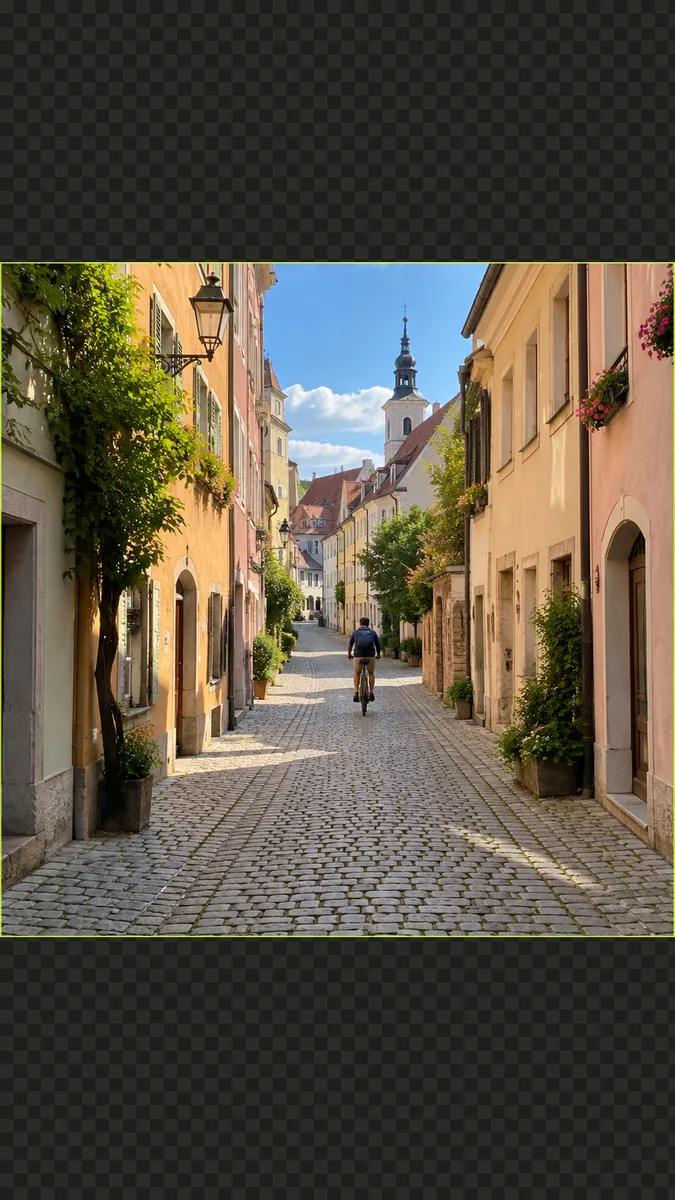 Before
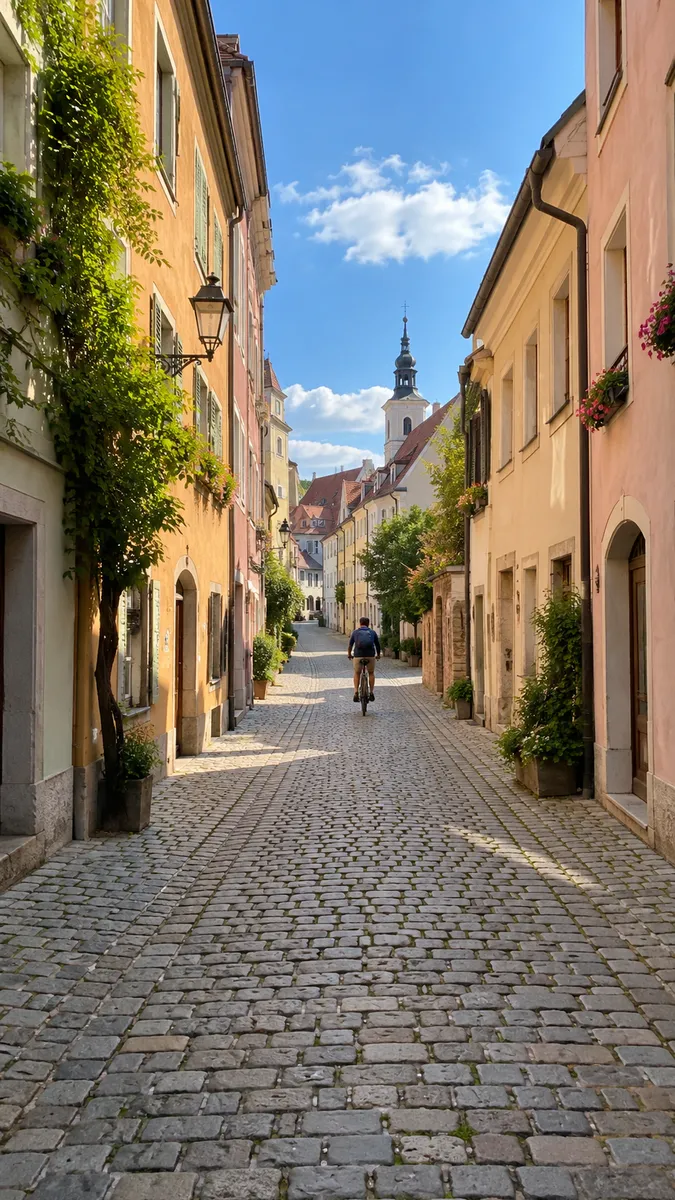 9:16
9:16Getting a natural result
- Simple surroundings extend best: sky, sand, grass, walls, water
- Keep the subject fully inside the frame. A person cut off at the edge is harder, because the rest of them has to be guessed
- A big change of shape, like a square to 9:16, adds a lot of new picture. Look over the new areas before you post
- Need it bigger too? Run the Image Upscaler after expanding
Making a thumbnail? Extend toward the side where the title will go, and you get empty sky or wall to put the text on.
Common problems
Something odd appears in the new area
Run it again, or try a smaller change of shape.
A person at the edge looks wrong
Start from a photo where everyone is fully inside the frame.
The app still crops it
Check you picked the shape the app expects: 9:16 for stories, 1:1 for the feed, 16:9 for thumbnails.
FAQ
Will it change my original photo?
No. The part of the picture you uploaded stays the same. Only the area around it is new.
Can I pick a custom size?
Not yet. You pick 9:16, 1:1 or 16:9, and the new shape is filled edge to edge.
What happens to my photo?
Your photos are deleted 7 days after upload and never used to train AI.
Is it free?
Free to try: every new account gets one photo trend free, no card needed. After that, start a plan, which you can cancel any time, or buy a credit pack when you need one. Each run shows its cost before you start.
Make your first one
Image Expander: Widen a photo; AI fills the edges.
Open Image ExpanderYour photos are deleted 7 days after upload and never used to train AI.