AI Image Extender
Make a photo wider or taller without cropping anything out. Pick a new shape and the AI paints in the rest of the scene.
Not charged if it fails.
By adding a photo you confirm everyone in it is 18+ and agreed to have their face used for this. We use faces only to make what you ask for. How we handle faces
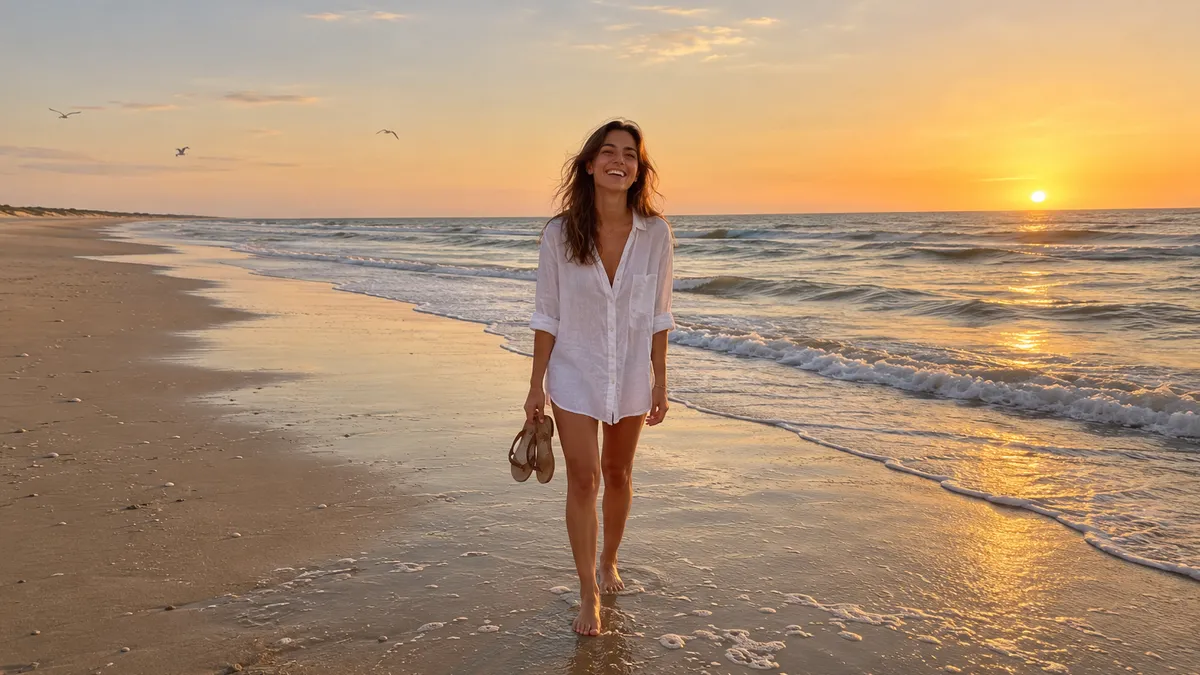
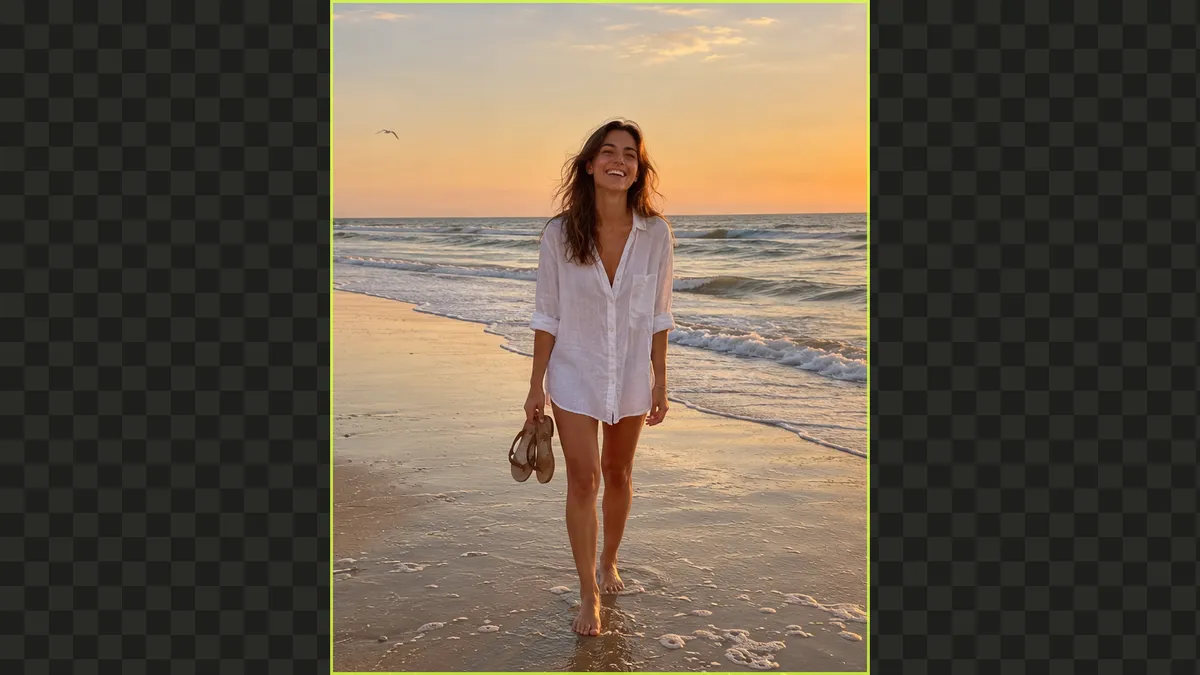
Samples are illustrations. Your result depends on your photo.
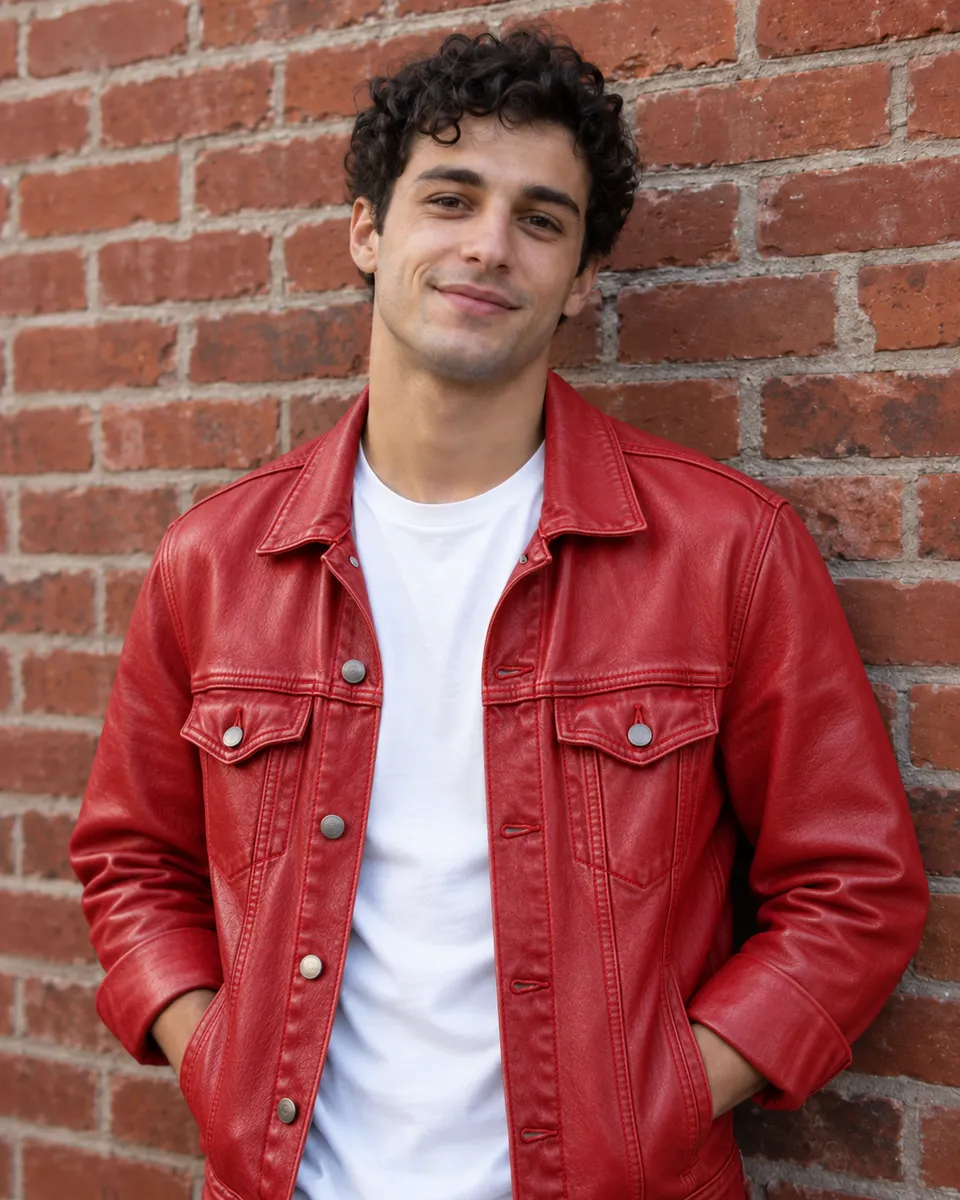
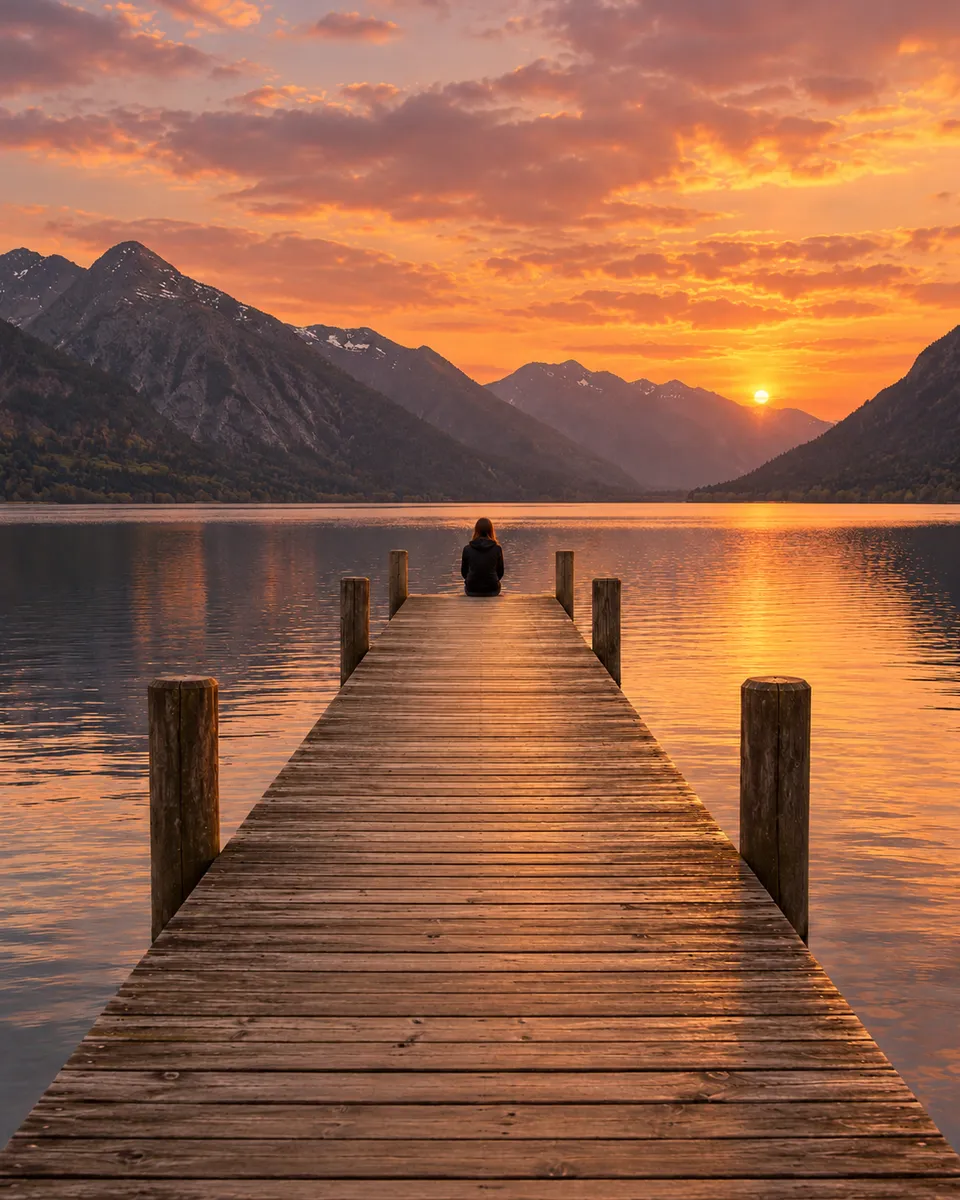
Widen a portrait photo to 16:9
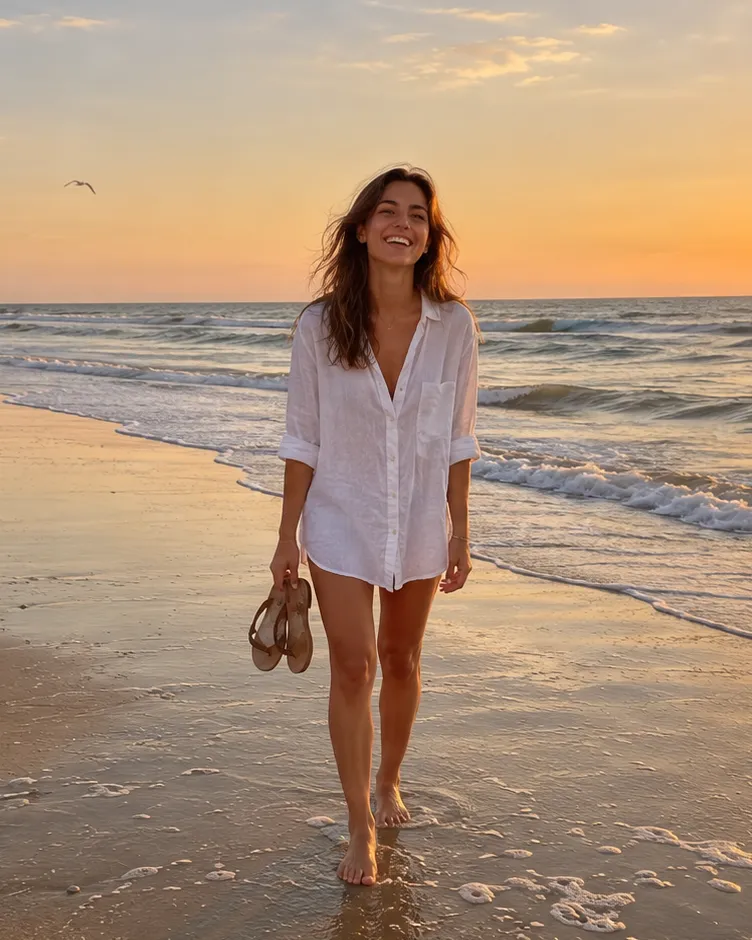
A vertical photo in a 16:9 banner or video thumbnail usually ends up with blurry side bars, or a crop that cuts off the subject. The extender keeps your photo untouched and paints new scenery to the left and right, matching the light, colors and horizon. On a beach shot, the shoreline and sand simply keep going. Open, simple surroundings like sky, sand, water and grass extend most naturally. Busy scenes with people near the edge are harder, so look over the new parts before you post. For a thumbnail that moves, take the wide frame to image to video.
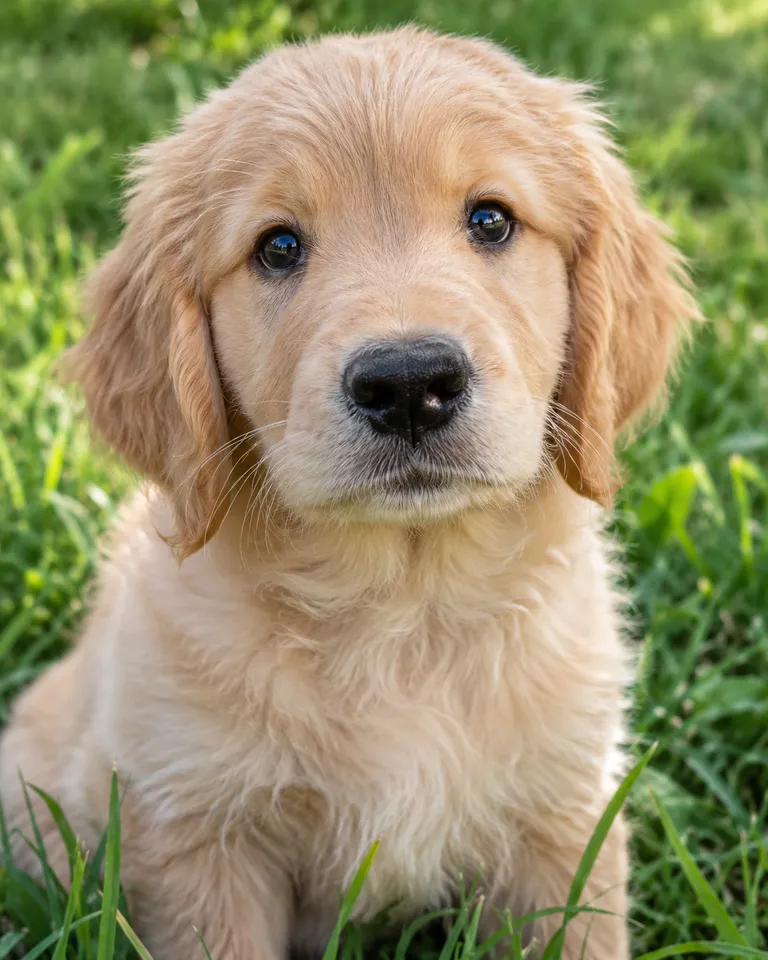
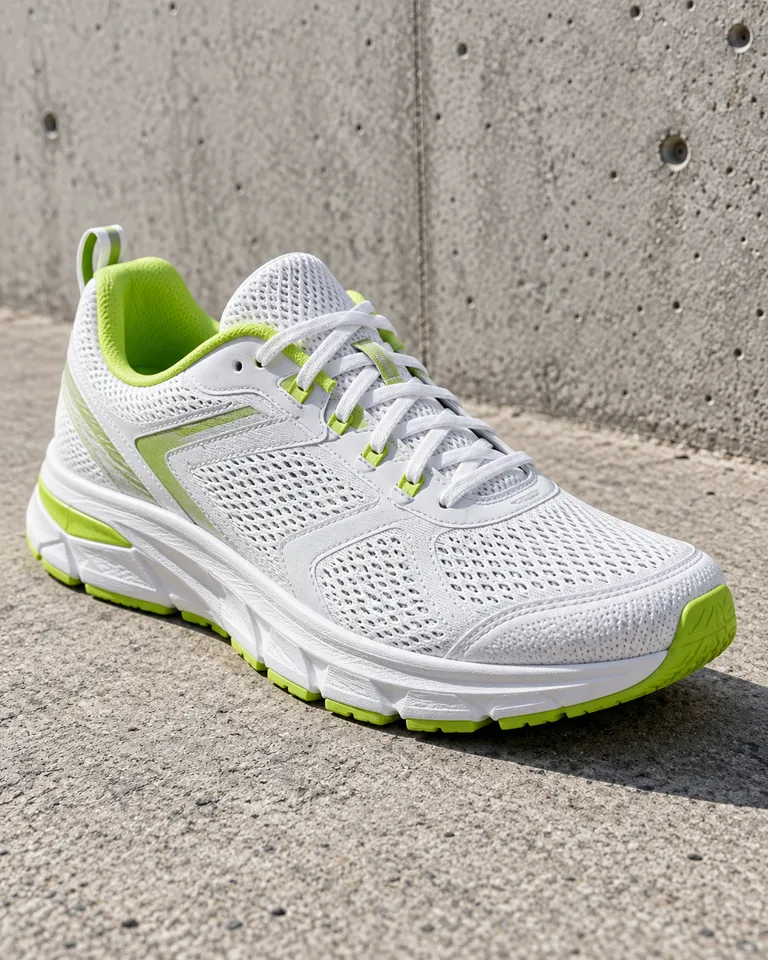
Make a wide photo square
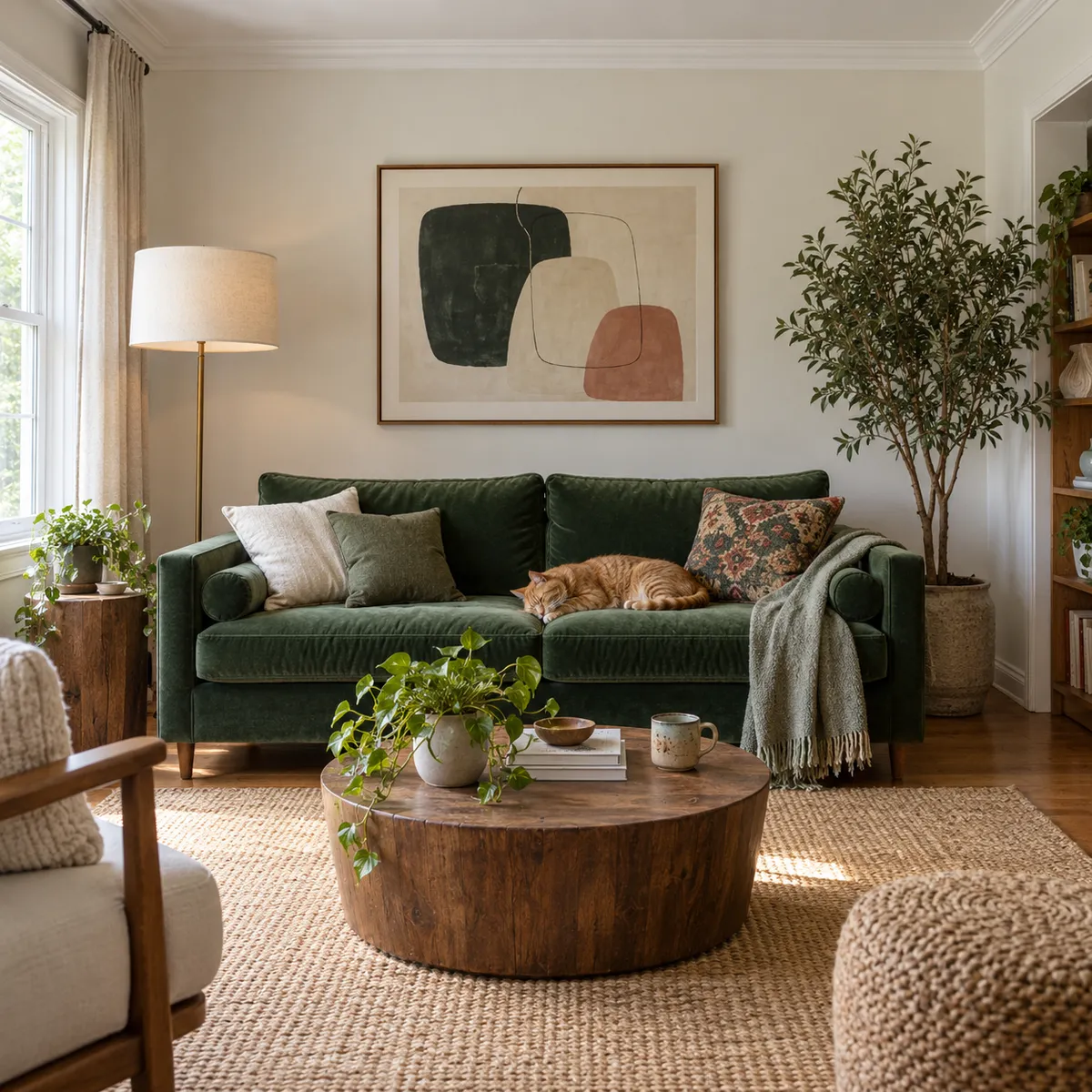
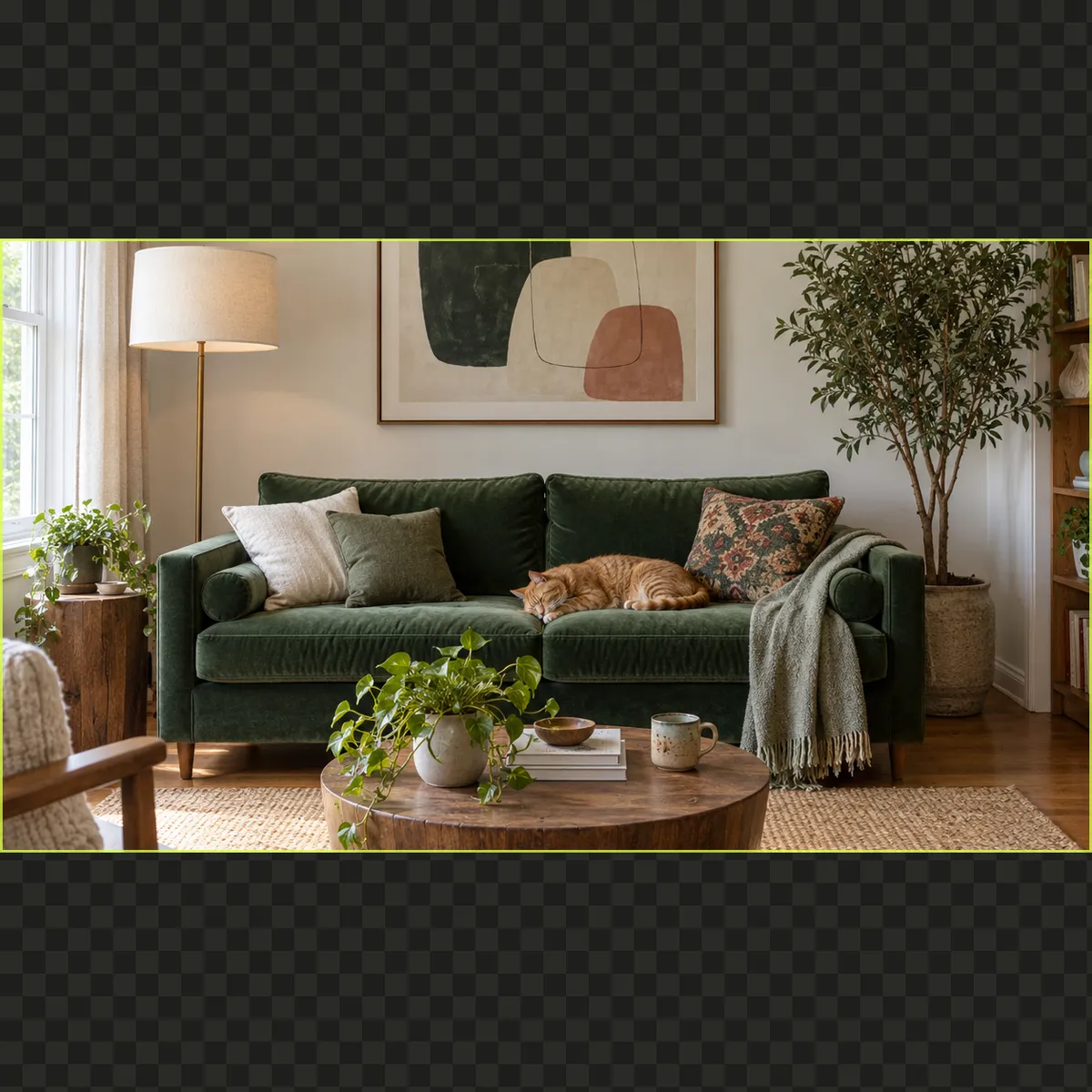
A square post crops a wide photo hard, and whoever stands at the edge gets cut out. Instead of cutting, the extender adds picture above and below. In a wide shot of a room, it adds the ceiling and more of the rug, following the perspective of the walls. Interiors work well because walls, floors and ceilings are predictable. Watch for repeated objects, like an extra lamp or a doubled picture frame, and run it again if something appears twice. To change what’s in the room rather than add to it, use the AI photo editor.
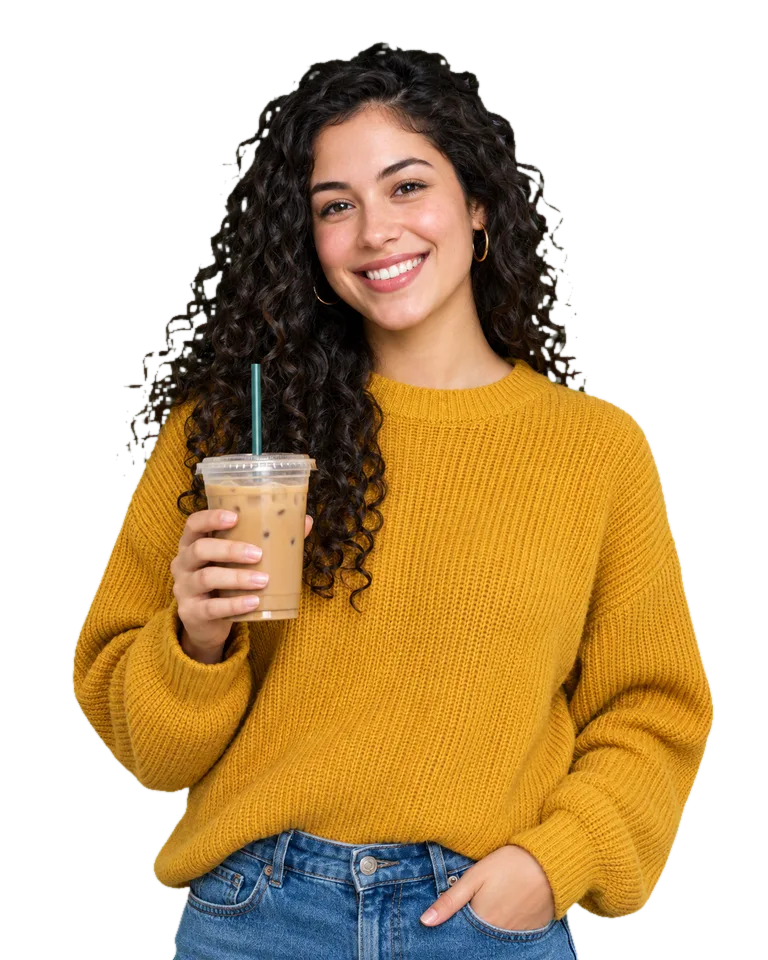
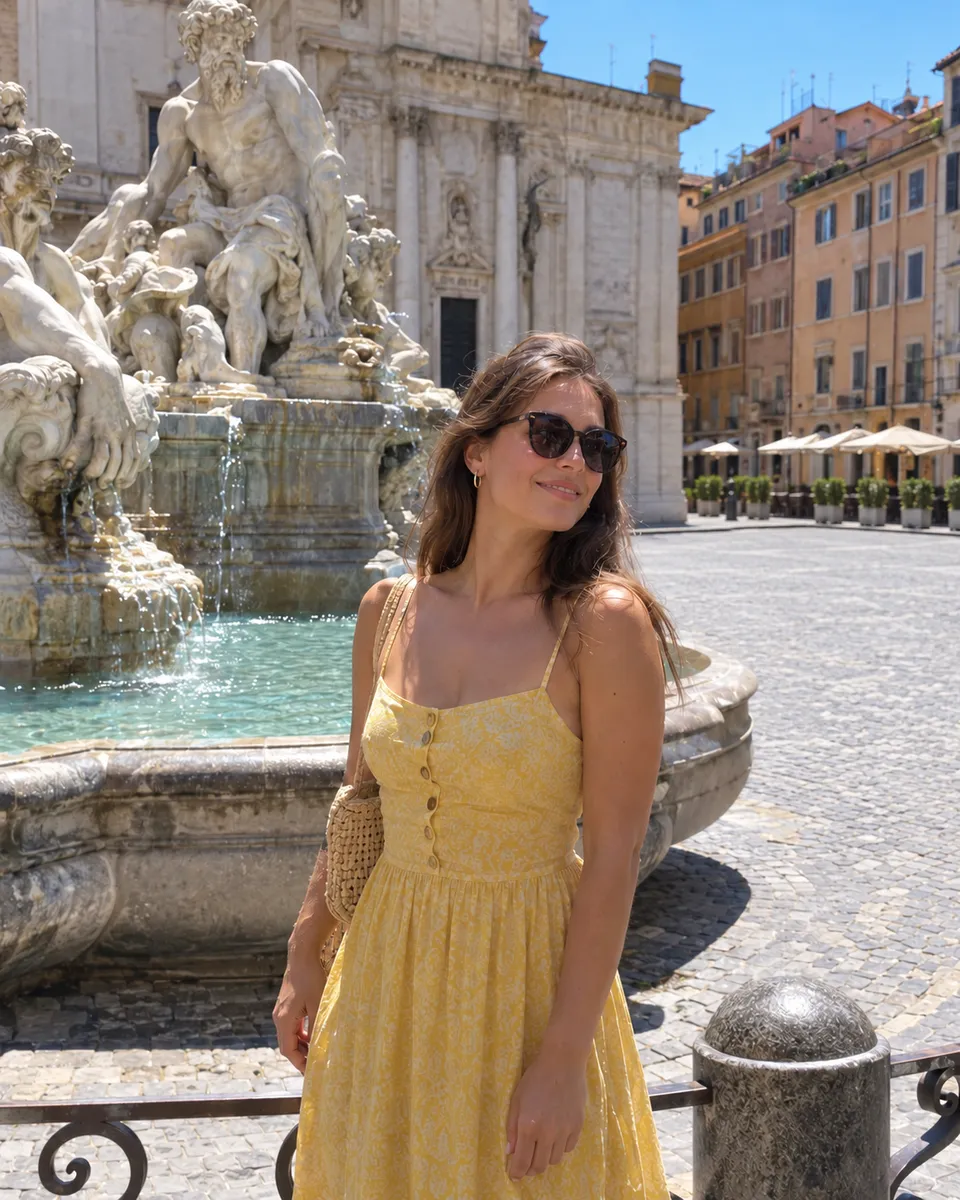
Extend a square photo to 9:16
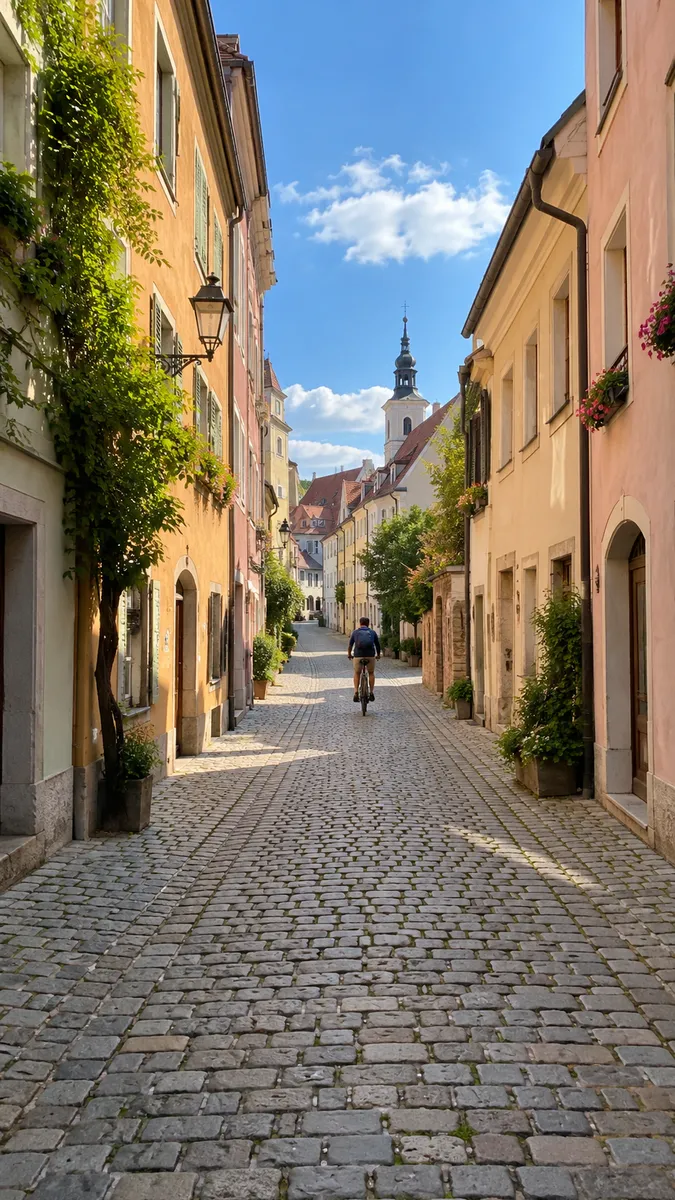
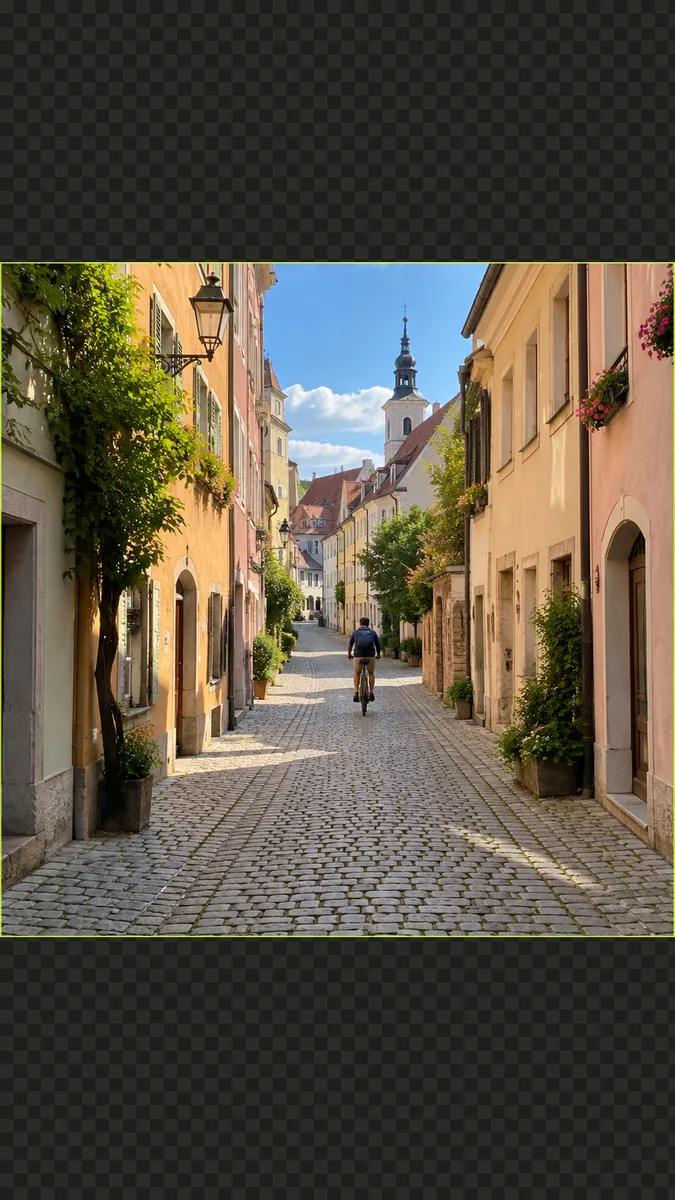
Stories and Reels fill a tall screen, and a square photo leaves empty bands at the top and bottom. The extender adds more sky above and more street below, so the photo fills the screen edge to edge. Going from square to 9:16 adds a lot of new picture, so this is the change that needs the closest look. Check signs, windows and any people in the new area, and if the result feels off, start from a photo with more open sky. Then animate it for a Story that moves.
Expand images without awkward crops
How to extend an image
- Choose photo
 1
1Add a photo
Drop it in, paste it, or pick a sample. JPG, PNG, WEBP or HEIC, up to 20 MB.
- New shape9:161:116:9Expand2
Pick a new shape
9:16 for Stories, 1:1 for posts, 16:9 for YouTube and slides.
- Full sizeShare link3
Compare and download
Drag the slider to see what was added, then save the PNG. It’s in Assets too.
What people extend photos for
- 01Thumbnails and bannersWiden a vertical photo to 16:9 without blurry side bars.
- 02Stories and ReelsMake a landscape shot tall enough to fill the screen.
- 03Square postsFit the whole photo into 1:1 instead of cropping someone out.
- 04Room for textAdd empty sky or wall where a title or caption can go.
Tips for a natural-looking extension
An image extender, sometimes called uncrop or outpainting, keeps your photo as it is and paints new scenery around it. It reads the edges, the horizon, the light and the textures, and carries them on out to the shape you picked.
Simple surroundings extend best: sky, sand, grass, walls, water. A person cut off at the border is harder, because the AI has to guess what the rest of them looks like. If you can, start from a photo where the subject is fully inside the frame.
A big change of shape, like a square photo to 9:16, adds a lot of new picture. Look over the new areas before you post, and try another shape if something seems off. Need it bigger too? Run the Image Upscaler after expanding.
Image Expander FAQ
Something else? Visit the help center.
Is the image extender free?
Free to try: every new account gets one photo trend free. After that, each run shows its cost before you start. Pick a monthly or yearly plan, or top up with a credit pack. You can cancel a plan any time, and the price is on the button before you start.
Which shapes can I pick?
9:16 for Stories and Reels, 1:1 for posts, and 16:9 for thumbnails and banners. The new shape is filled edge to edge.
Will it change my original photo?
No. The part of the picture you uploaded stays the same. Only the area around it is new.
What if the new part looks wrong?
Run it again, or try a smaller change of shape. Photos with plain surroundings give the most natural result.
What files can I upload?
JPG, PNG, WEBP or HEIC, up to 20 MB. One photo at a time.
What happens to my photo?
Your photos are deleted 7 days after upload and never used to train AI. The expanded version stays in Assets until you delete it.
What if it fails?
You get the credits back automatically. You don’t need to ask.
How do I extend the background of a photo?
Add the photo, pick a new shape and tap Expand. The AI paints new background around your picture to fill 9:16, 1:1 or 16:9, matching the light and colors. Each run costs 4 credits, and the price is on the button before you start.
Can I use the expanded image commercially?
Yes, for photos you own the rights to. Banners, thumbnails, listings and ads are all fine. Don’t expand other people’s photos without their permission, and look over the new areas before you publish, since they are newly painted.
Why does the new part have a seam or a repeated pattern?
Usually because the edge of the photo is busy or the change of shape is large. Strong lines, text or people right at the border are hard to continue. Try a photo with simpler edges, pick a smaller change of shape, or run it again, since each run paints a different fill.