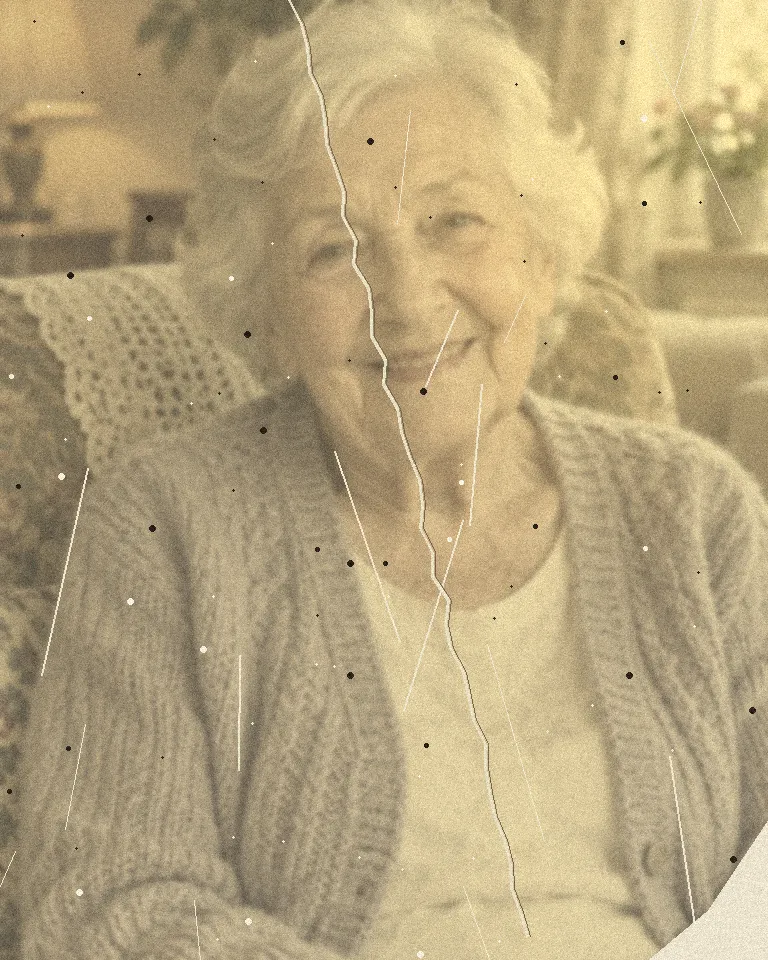

Quick answer
Take the print out of its frame, lay it flat by a window and photograph it straight down with the flash off. Then run that photo through a restore tool to fill scratches, lift fading and sharpen faces. Compare with the original before you print, and keep the original.
You don’t need a scanner or editing skills to bring back an old print. A clear phone photo and the Old Photo Restore tool handle most of what time does to a picture: scratches, creases, fading and soft faces.
The part people skip is the first step, getting a good copy of the print. It decides how much there is to work with, so it gets the most space here.
What you need
- The original print, out of its sleeve, frame or album page
- A phone, and a spot by a window in daylight
- A dark, plain surface to lay it on, like a table or a sheet of card
Step 1 · Make a flat, sharp copy
Lay the print flat near a window, out of direct sun. Hold the phone directly above it, parallel to the table, so the edges look square on screen. Fill the frame with the photo and tap on a face to focus.
Turn the flash off. On a glossy print the flash leaves a white glare spot, and no restore tool can bring back what the glare covered. If you see a reflection, move the photo or tilt it a little away from the window.
Curled print? Put a sheet of clean glass on top, or hold the corners down with something heavy just outside the frame. Take a few shots and keep the sharpest.
Crop the copy to the edge of the print. Leave the white border if the photo has one: it helps the tool tell the picture from the background.
Step 2 · Restore it
Add the copy to Old Photo Restore. It fills scratches and creases from what’s around them, lifts the fading, and sharpens soft faces. It keeps the photo’s age: black and white stays black and white, and film grain is left alone so it still looks like a real print.
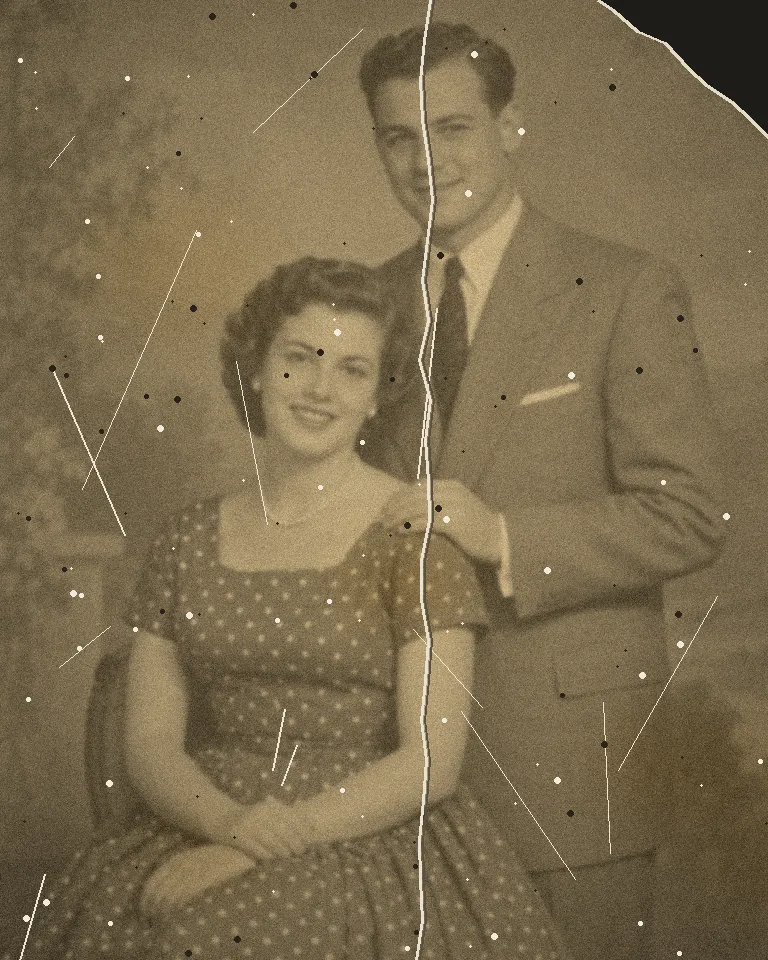 Before
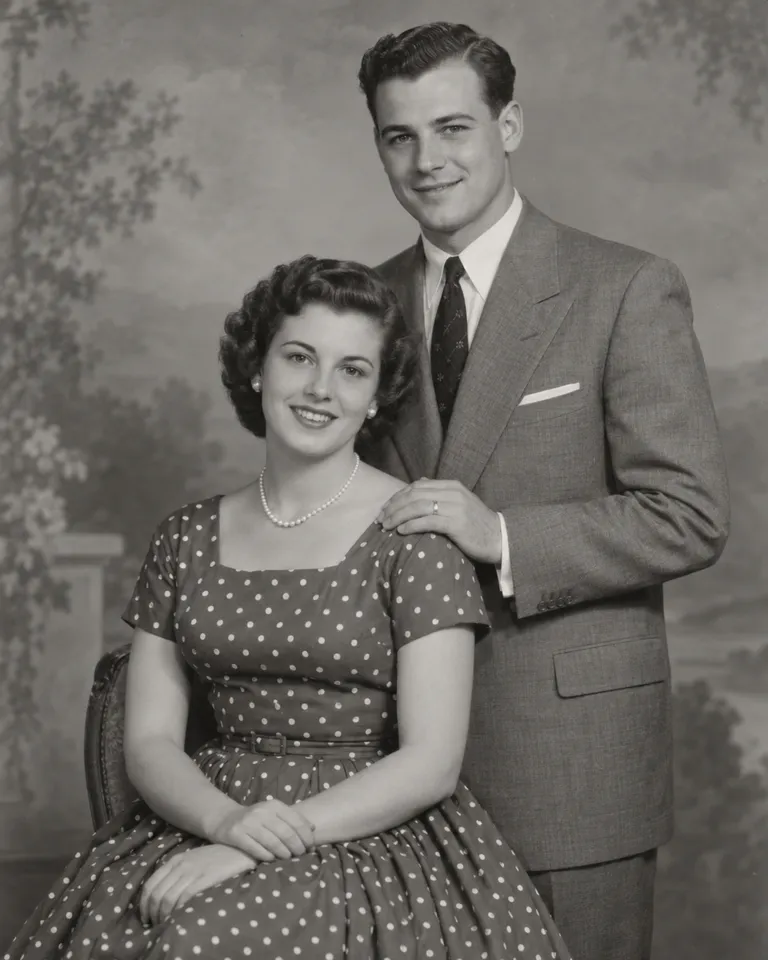 Restored
Step 3 · Check the faces
Put the result next to the original and look at the faces first: eyes, teeth, the shape of the mouth. Small damage is repaired cleanly. A big missing area, like a torn corner across a face, is rebuilt as a best guess, and a best guess can look like someone slightly different.
If a face doesn’t look right, take a sharper copy of the print and try again. Show it to someone who knew the person; they will spot a change you don’t.
Step 4 · Save, print and keep the original
Download the restored copy and keep it somewhere safe, with the original copy next to it. Planning a big print? Run it through the Image Upscaler too. What is image upscaling? 2× vs 4× explained covers how big you can go.
Put the print itself back in an acid-free sleeve, away from sunlight and damp. A restored copy is a copy; the original is still the record.
Common problems
A white spot where the light reflected
Shoot again with the flash off and the print turned away from the window.
The result is soft
Your copy was probably out of focus. Tap on a face before you take the shot, and hold the phone still.
The face looks like someone else
The damage was too large to repair exactly. Try a sharper copy, or keep the original for that one.
The edges look bent
The phone was at an angle. Hold it directly above the print so all four edges are straight on screen.
FAQ
Do I need a scanner?
No. A sharp phone photo, taken flat in daylight with the flash off, works well.
Will it add color to a black and white photo?
No. It keeps the original colors, so black and white stays black and white.
What happens to my photo?
Your photos are deleted 7 days after upload and never used to train AI.
Is it free?
Free to try: every new account gets one photo trend free, no card needed. After that, start a plan, which you can cancel any time, or buy a credit pack when you need one. Each run shows its cost before you start.
Make your first one
Old Photo Restore: Fix scratches, fade and blur.
Open Old Photo RestoreYour photos are deleted 7 days after upload and never used to train AI.